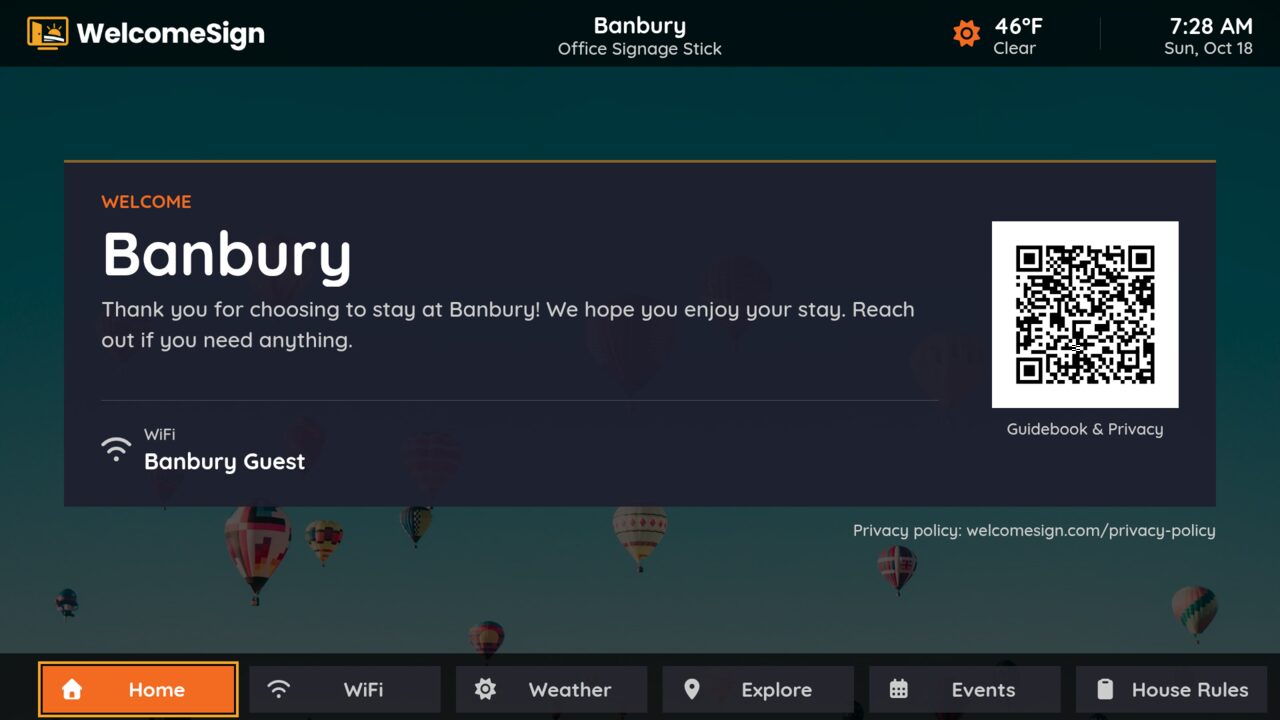
If your rental has a Fire TV Stick plugged into the TV, or a TV with Fire TV built in, you can now run WelcomeSign on it. The app is in the Amazon Appstore as WelcomeSign, and it’s free to install.
Until now WelcomeSign only ran on Roku. A lot of you told us your rentals have Fire TV instead, often because a stick came cheap or the TV shipped with it. This is that app.
What guests see
It’s the same redesigned app that runs on Roku, so if you already have a Roku set up, a Fire TV in another rental will look the same and read from the same dashboard.
- Welcome screen with your property name, your welcome message, the WiFi network, the current weather and time, and a QR code that opens the phone guidebook.
- WiFi, with the network name, password and a QR code guests can scan to join without typing anything.
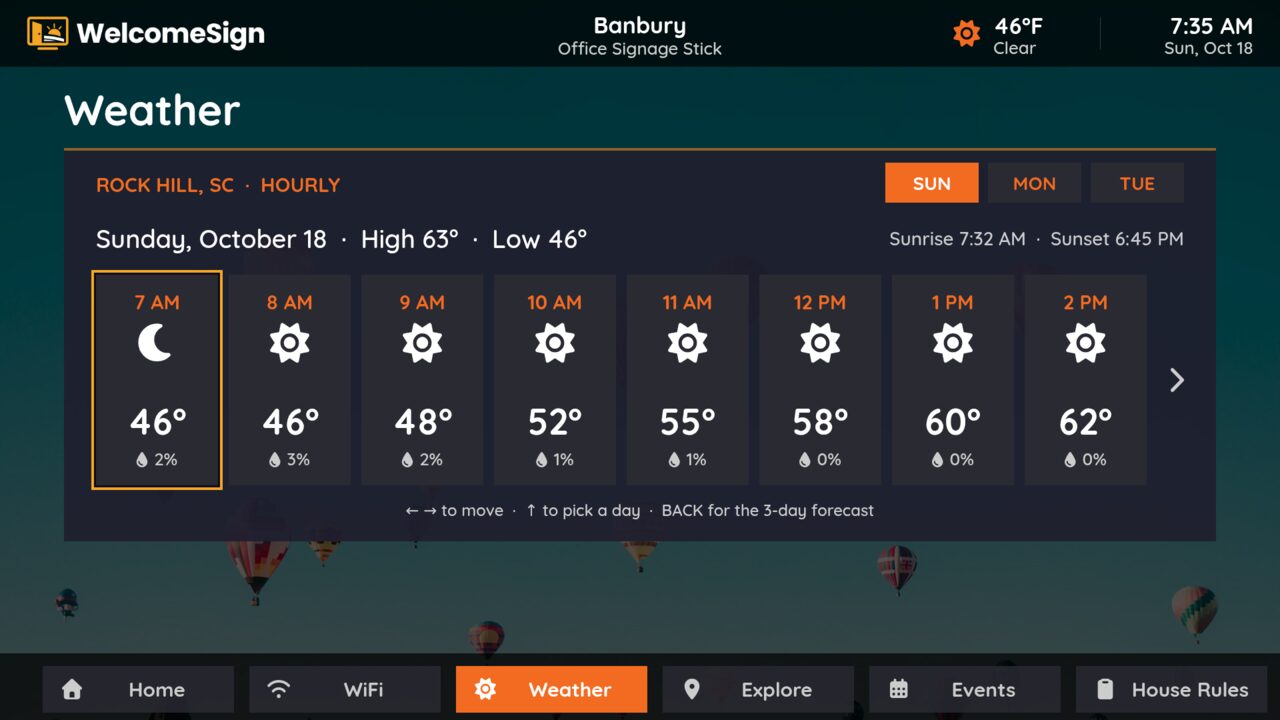
- Weather for the property’s location: current conditions, a 3-day forecast, and hour-by-hour temperatures and rain chances for each of the next 3 days.
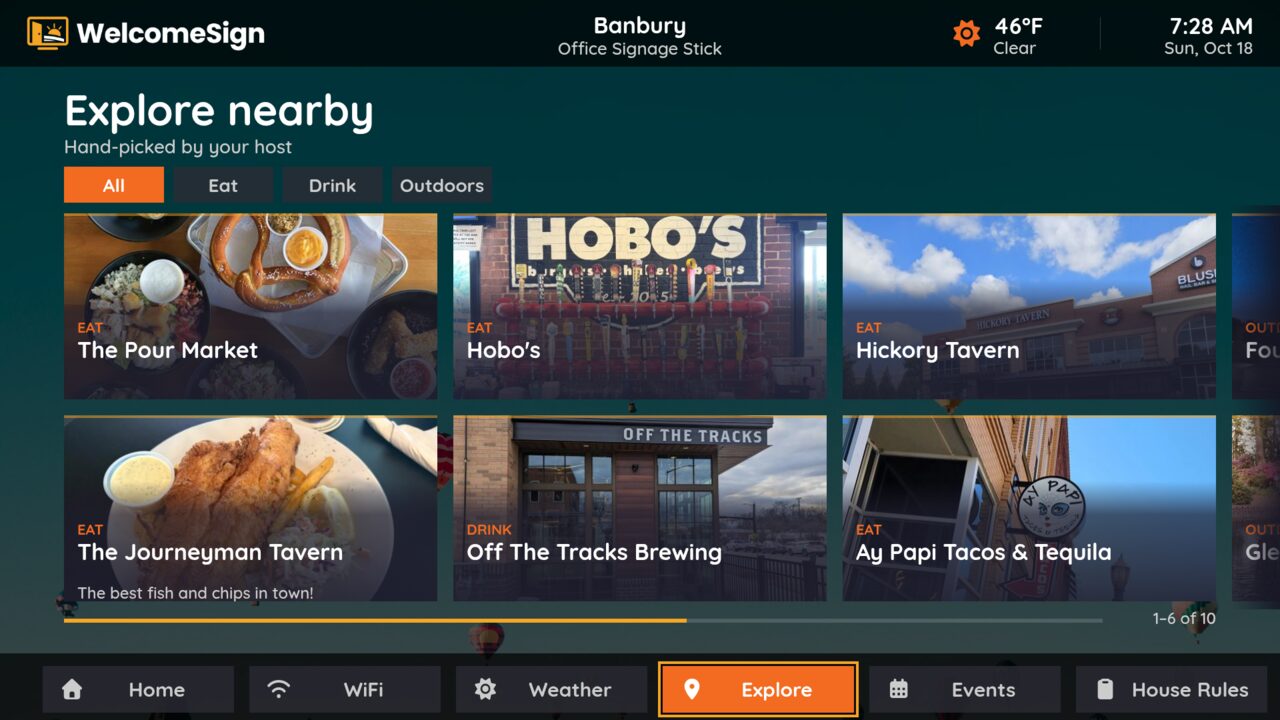
- Explore, your local recommendations as photo cards, filtered by category. Each one opens to the details and a QR code so guests can take it with them.
- Events you add, like a festival, a farmers market or a game in town during the stay.
- House Rules, one tile per rule, plus the check-out list on the last day.
Guests move around with the arrows on the Fire TV remote and press the select button to open things. Everything they see on the TV is also in the phone guidebook, which is where the QR codes lead.
Installing it on the Fire TV
You’ll need the Fire TV remote and a WelcomeSign account with at least one property. If you don’t have an account yet, you can sign up free.
- Press Home on the Fire TV remote.
- Go to Find (the magnifying glass) and choose Search.
- Type WelcomeSign and pick it from the results.
- Choose Get or Download. When it finishes, choose Open.
Or send it from your phone or computer
This is handy if you’re not at the property. Open WelcomeSign on Amazon, sign in with the Amazon account the Fire TV uses, pick the Fire TV in the Deliver to menu, and choose Get App. It downloads the next time the Fire TV is on and connected. Someone at the property still needs to open it the first time to see the pairing code.
Pairing the TV with your property
The first time the app opens, it shows a 6-character code.
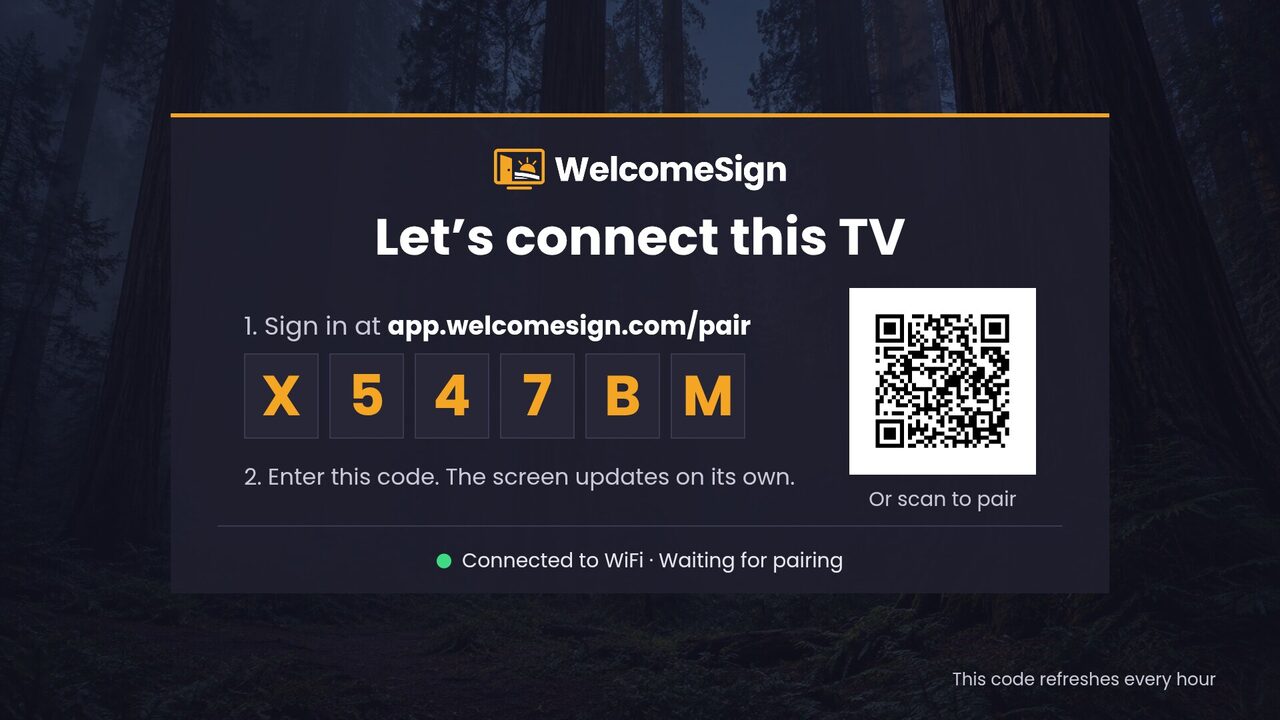
- On your phone or computer, go to app.welcomesign.com/pair and sign in. You can also scan the QR code on the TV, which fills in the code for you.
- Type the code from the TV. Capital letters don’t matter.
- Pick the property, give the TV a name like Living Room TV, and choose Pair Device.
The TV switches to your welcome screen on its own within a few seconds. Codes last an hour, and the TV shows a fresh one when a code runs out, so you don’t need to restart anything if you get pulled away.
After that, anything you change in the dashboard (the welcome message, recommendations, house rules, the background photo) shows up on the TV without touching it.
A few Fire TV notes
- Keep it easy to find. Fire TV doesn’t open apps by itself after it restarts. If the power goes out or someone unplugs the stick, WelcomeSign won’t be on screen until it’s opened again. Moving it to the front of your apps row on the Fire TV home screen makes that a two-button job for you or your cleaner.
- More than one TV? Install the app on each Fire TV and pair each one. Every TV gets its own code. On the Hoster plan and above you can assign TVs to rooms so they show different content.
- Mixing Roku and Fire TV is fine. Both read from the same property, so you don’t set anything up twice.
What’s next
The Samsung and LG apps are submitted and under review in their app stores. Apple TV and Google TV are coming later. We’ll post here as each one goes live. If you’re waiting on one of those, join the waitlist and we’ll email you when yours is ready.
On Roku? The setup is much the same. See How to Install WelcomeSign on Roku.
Need Help?
Email support@welcomesign.com, browse the help center, or use the chat button in the bottom-right corner of your dashboard. If something about the Fire TV app doesn’t work the way you expect, we’d like to hear about it.