The TV is where guests find the WiFi password on the first evening. It’s not where they are when they need the name of that seafood place, or the check-out time on the last morning with a car half packed. For that they reach for their phone.
Everything you enter under your property’s Guidebook tab is also a guidebook guests can open on their own phone. It’s a web page, so there’s nothing for them to install and no account to create. This is what’s in it.
Home
The first screen has the property name, a welcome with the guest’s name, and three facts across the top: check-out time, the WiFi network, and quiet hours. Below that are shortcuts to everything else.
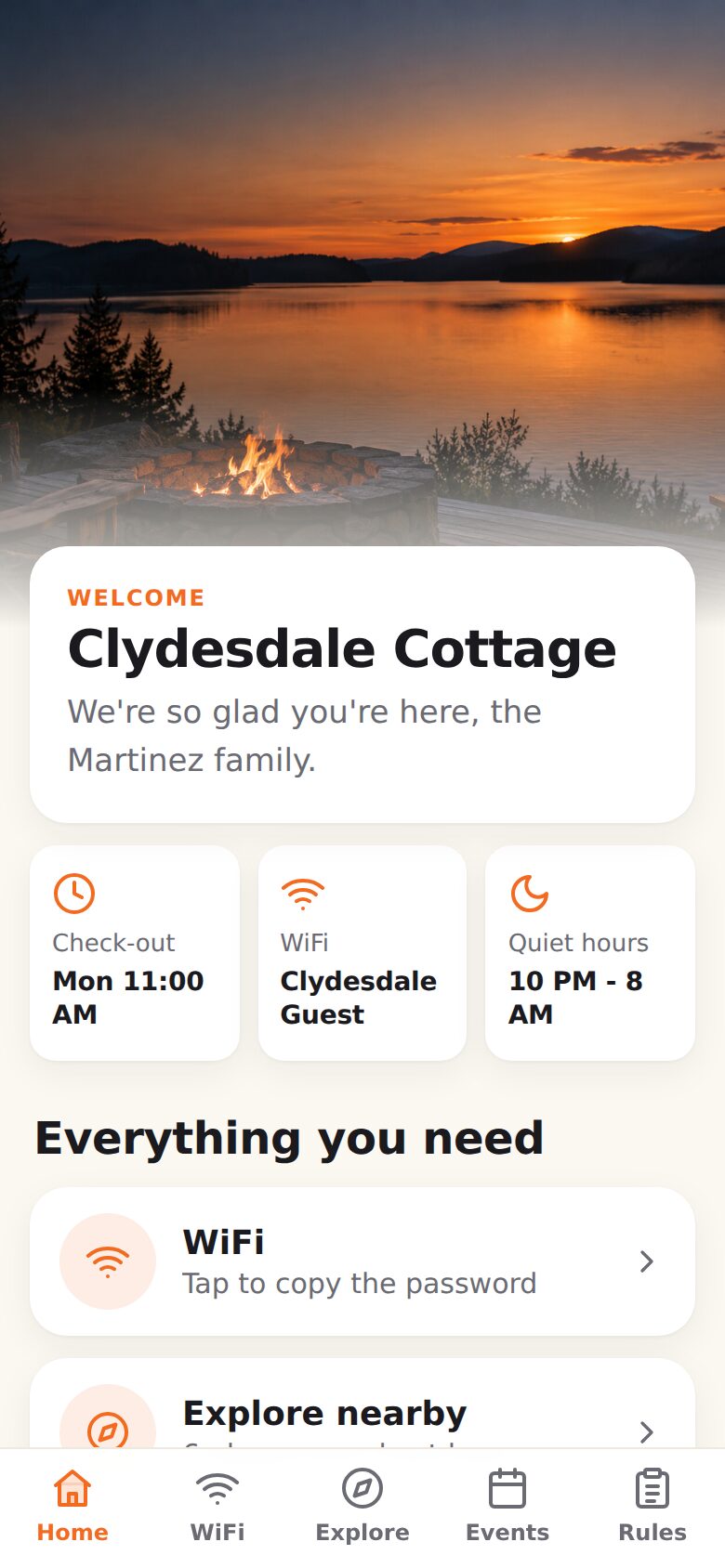
The five tabs along the bottom stay put on every screen: Home, WiFi, Explore, Events and Rules.
WiFi
The network name and password, each with a Copy button, and a Join this network button. If you’ve added a note about the router, it shows underneath.
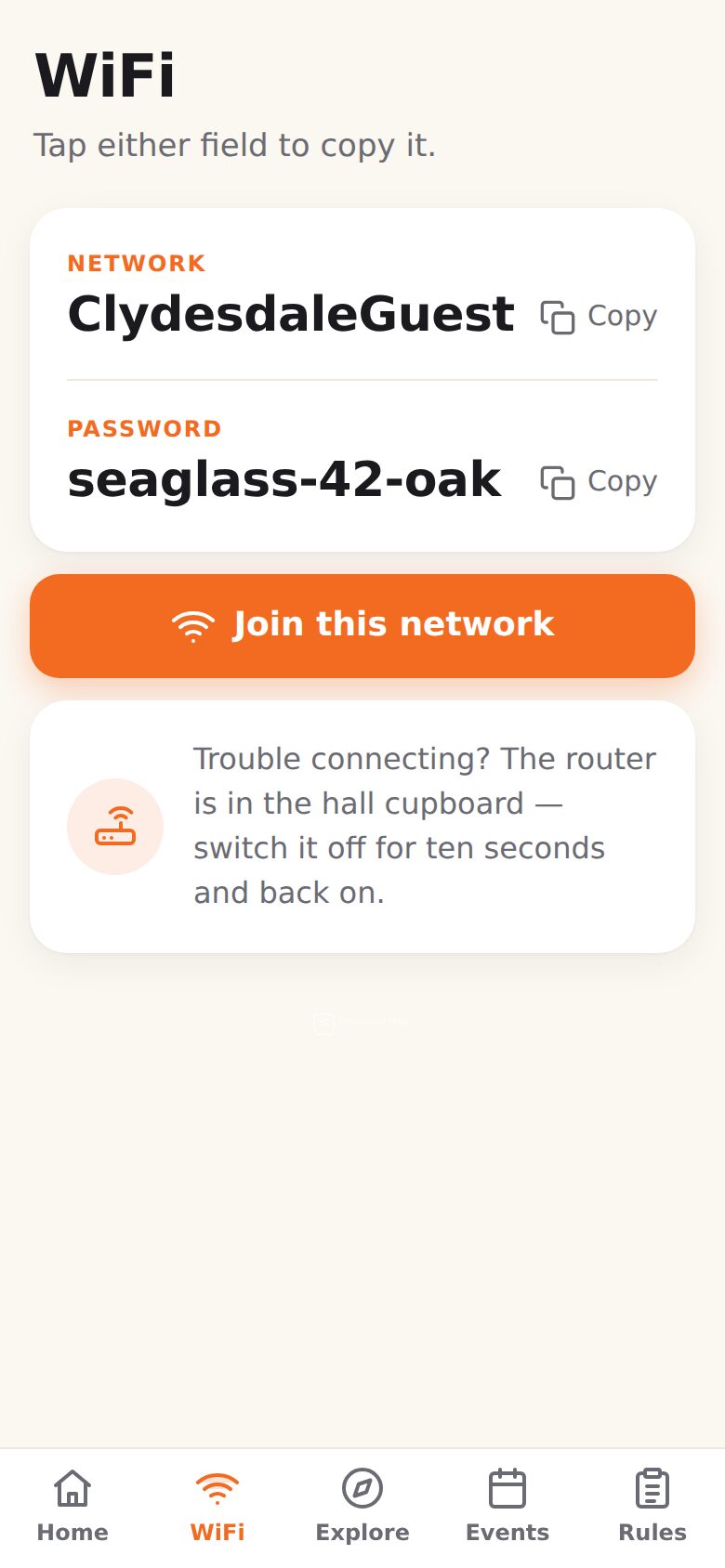
This is the screen that ends the “what’s the WiFi password” text. A guest who has it on their phone can pass it to everyone else in the group.
Explore
Your recommendations, with the photo, how far away each one is, and the note you wrote. Chips across the top filter by category.
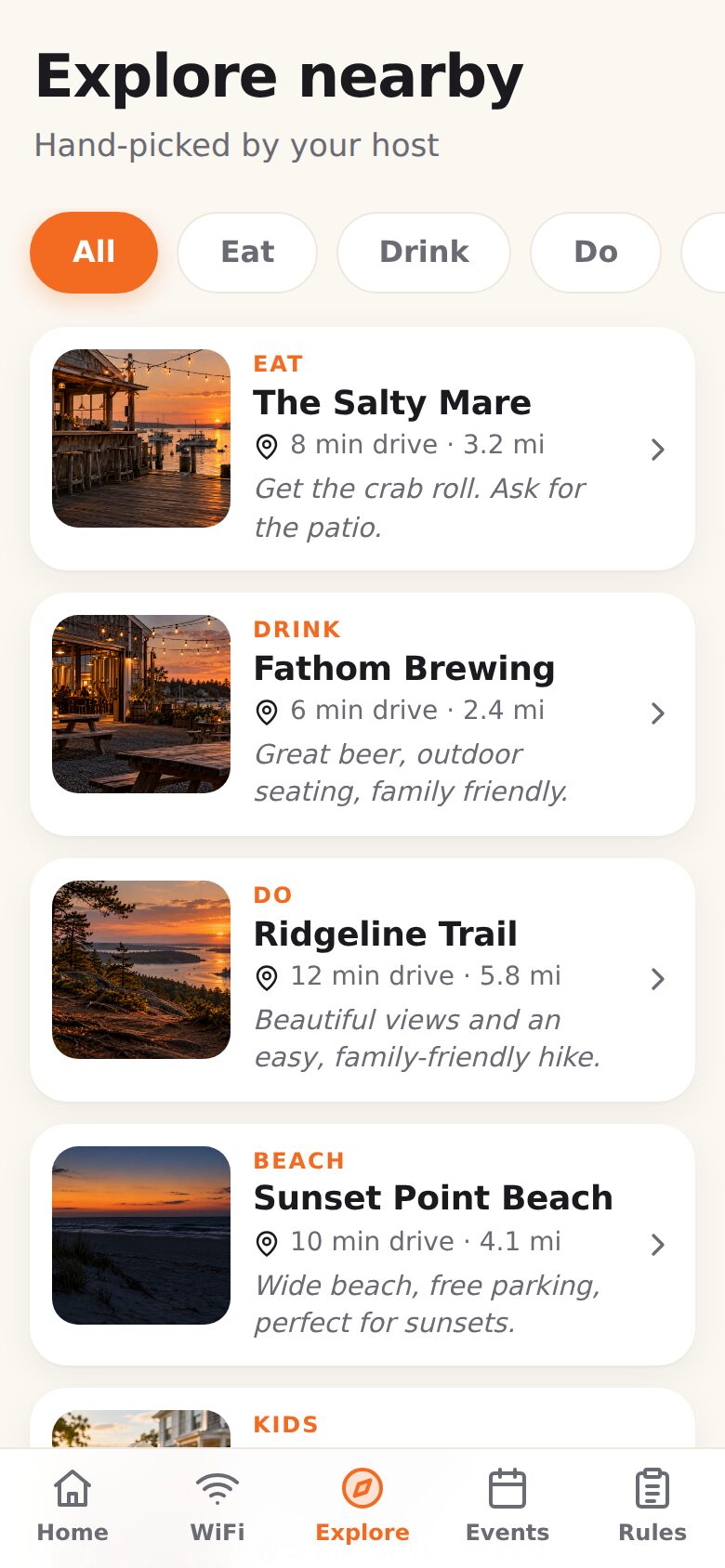
Tapping a place opens its page with whether it’s open right now, the opening hours, a button to call and a button for directions, which hands off to the maps app on the phone. That’s the part a TV can’t do.
Events
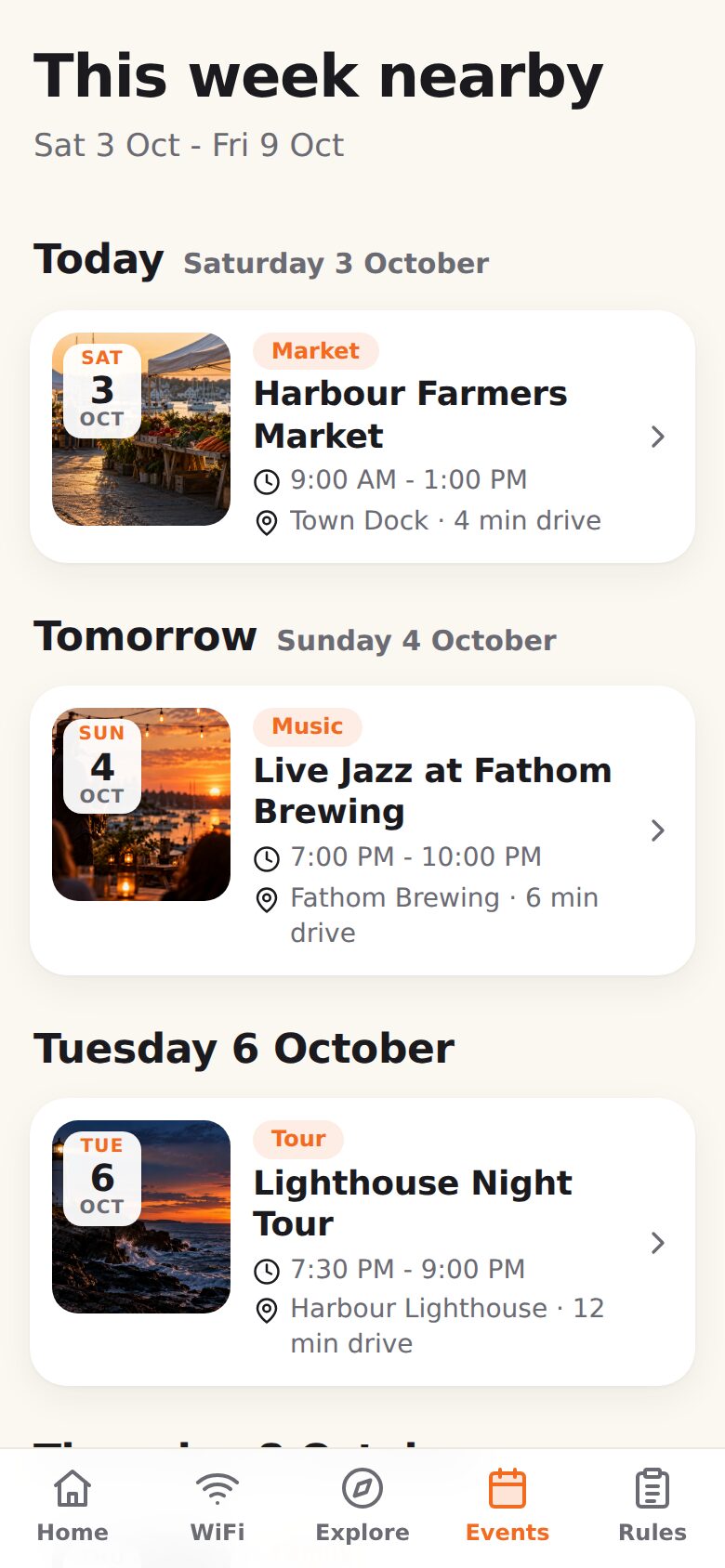
Local events grouped by day, starting with today, with times and the venue. An event you’ve given a ticket link gets a Get tickets button; the rest get Directions. Events that have finished aren’t shown.
House rules
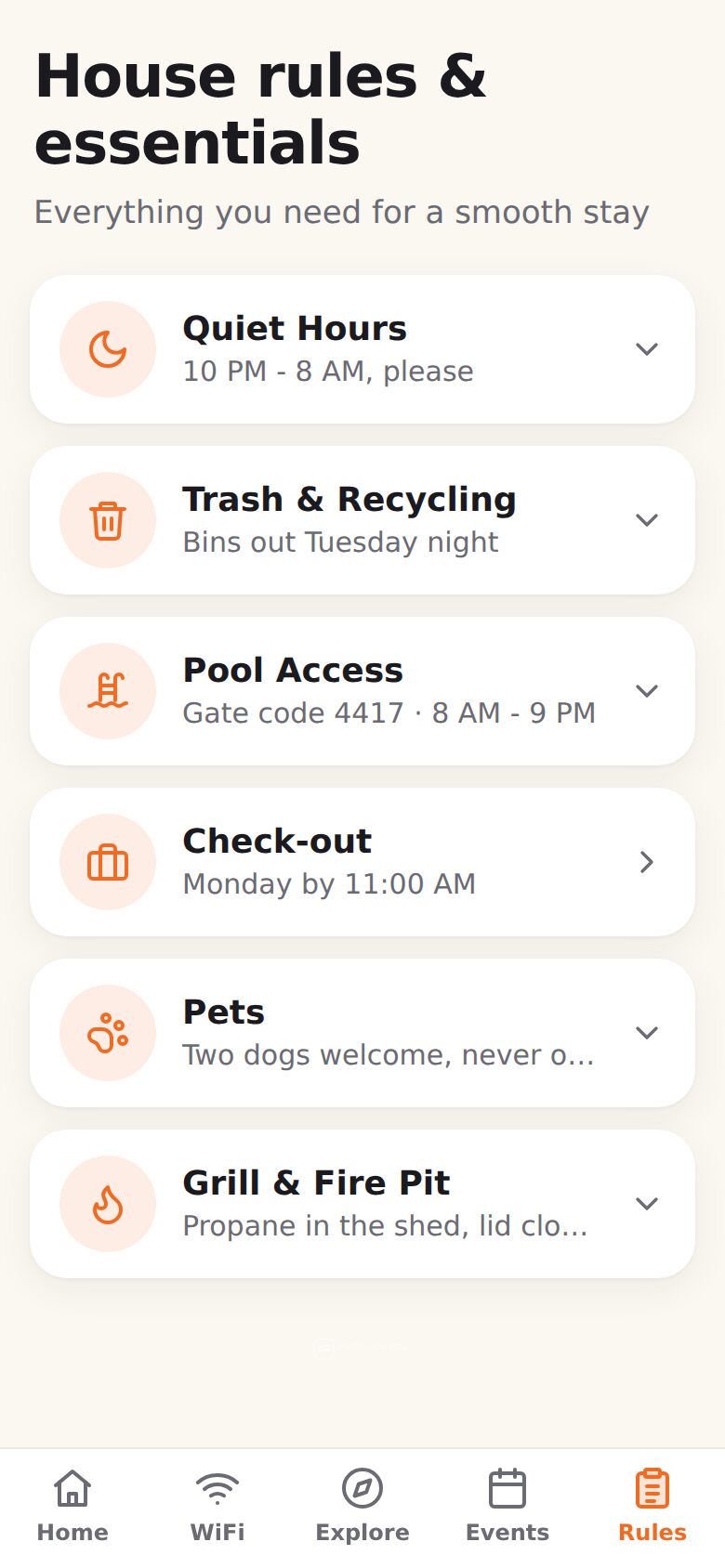
Each rule is a row with its icon, title and the short line you wrote. Tapping a row opens the details.
The check-out list
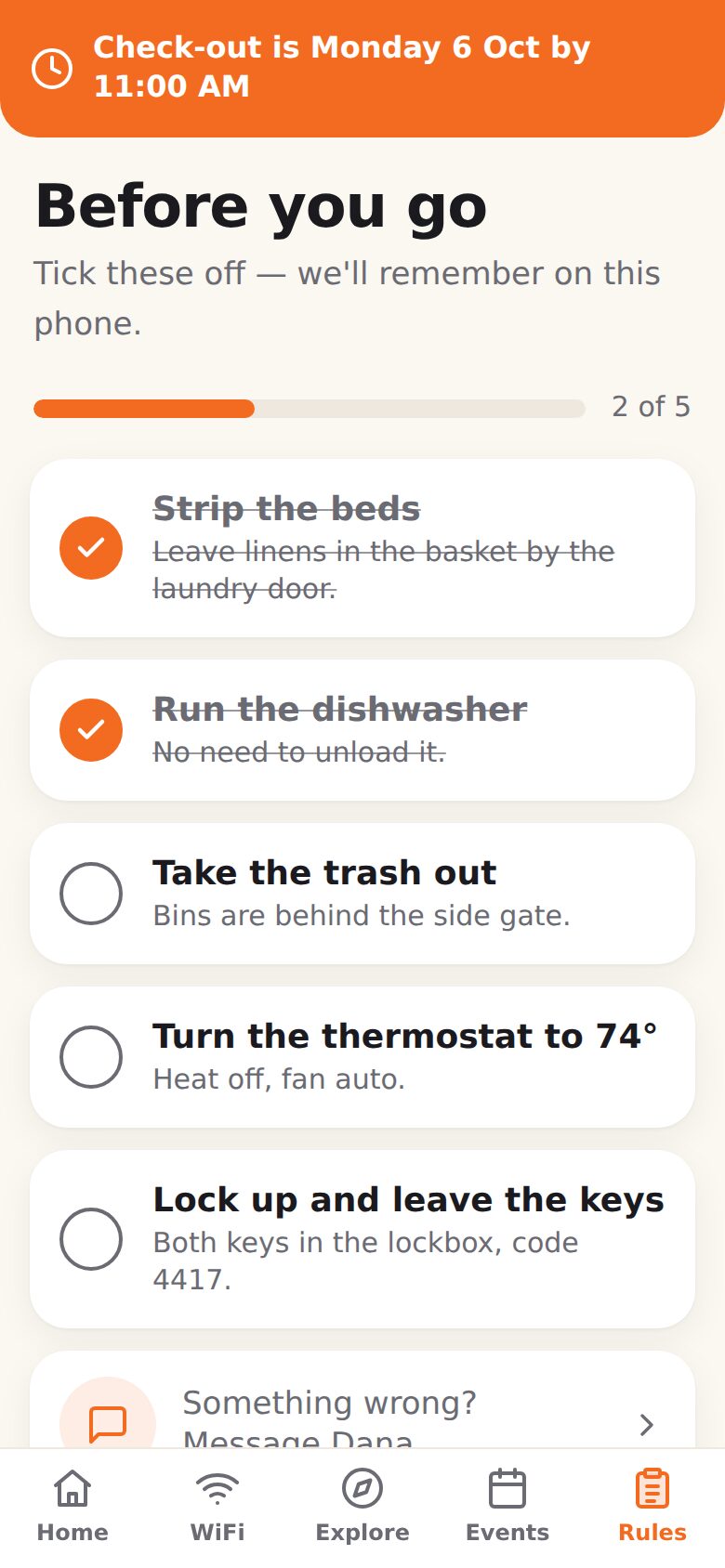
Your check-out steps, with the guest’s own check-out day and time at the top. Guests can tick steps off as they go, and a bar shows how far along they are. The ticks stay on their phone: you aren’t notified, and nothing happens if they skip it.
What changes during a booking
The guidebook has two modes, and you don’t switch between them yourself.
While a guest has a booking, they see everything: the greeting with their name, their check-out day and time, the check-out list, and anything you’ve marked Only show during a booking, such as a door code or the WiFi password.
Outside a booking, the same link shows only the public parts: your recommendations, events and the rules that aren’t private. Door codes and other booking-only details are left out.
This depends on the booking being in your dashboard, so add each guest’s dates before they arrive.
How guests open it
Guests scan a QR code on the TV with their phone’s camera. The code on the home screen opens the guidebook; a code on a particular place, event or rule opens that item directly.
Those QR codes are part of the redesigned TV app. It’s being submitted to the Roku Channel Store now, and Roku installs it as an automatic update once it’s approved, so you won’t need to do anything to the TV. The guidebook itself is already live, and you can open it today with Preview guidebook at the top of your property’s Guidebook tab.
When the signal is bad
Once a guest has opened the guidebook, the pages they’ve seen keep working on a weak connection or none at all, which helps at a cabin or on a beach. A banner at the top tells them the page is offline, and it goes away when the phone is back online.
Getting it ready
There’s no separate setup for the phone guidebook. It shows what’s under your property’s Guidebook tab:
- Recommendations and Events: see How to Add Local Recommendations and Events.
- House rules and the check-out list: see How to Add House Rules to Your Vacation Rental TV.
- WiFi & check-out: the network, password, check-in and check-out times, and your contact details.
Then choose Preview guidebook and read it on your own phone, the way a guest would after a long drive.
Need Help?
Email support@welcomesign.com, or use the chat button in the bottom-right corner of your dashboard.