Most hosts already have their house rules written down somewhere: on the Airbnb listing, in a PDF guidebook, or in the welcome email that goes out before check-in. You don’t need to type them again. There are two ways to bring them in, and both end on a review screen where you choose what to keep. Nothing is saved until you confirm.
Both options are under your property’s Guidebook tab > House rules > Add rule. If you haven’t added any rules yet, they’re on the empty page itself.
Option 1: Import from Airbnb
Before you start
The import needs to know which listing is yours. Open the property, go to the Details tab and fill in Airbnb listing link with the listing’s URL. Once it’s saved, Import from Airbnb becomes available. Until then it’s greyed out with the note “Link your Airbnb listing in Details first.”
What it reads
The import reads what your public Airbnb listing shows:
- the house rules (pets, parties, smoking, quiet hours, maximum guests and any additional rules you wrote)
- check-in and check-out times
- the checkout tasks you set on Airbnb
It can only see what any guest browsing the listing can see. Door codes, lockbox codes and Wi-Fi passwords are sent to guests privately by Airbnb after they book, so they never come through the import. You’ll add those yourself.
Review and add
- Choose Add rule, then Import from Airbnb. If your listing is linked you’ll also see an Import from Airbnb banner above your rules.
- The review lists every rule it found, each with its section. All of them start ticked.
- Untick anything you don’t want.
- Choose Add to save the ticked rules.
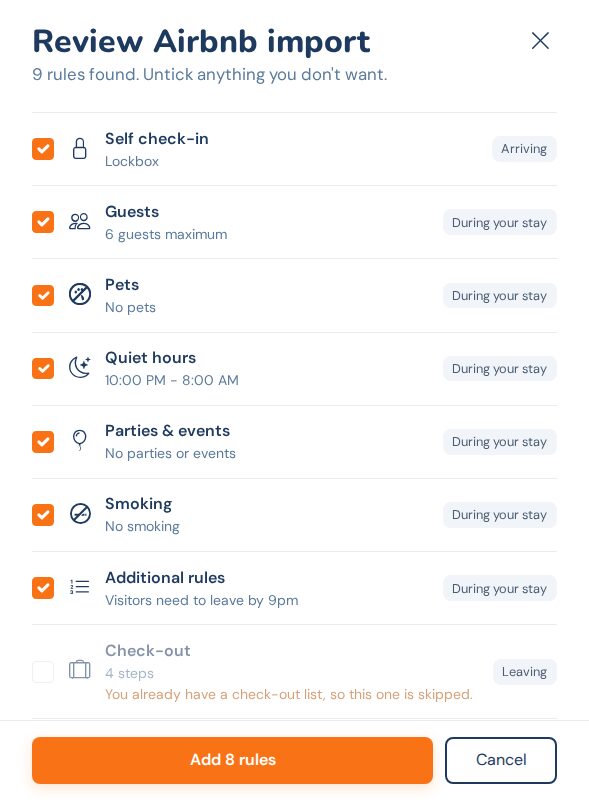
Each property has a single check-out list. If you already have one, the Airbnb checkout tasks are unticked and locked, with the note “You already have a check-out list, so this one is skipped.” Your existing list isn’t touched.
Imported rules get a small From Airbnb tag in the editor so you can tell them apart. The import doesn’t stay linked to the listing, so if you change your rules on Airbnb later, edit them here too.
If the import can’t read your listing, you’ll see a short explanation and the option to paste your rules instead.
Option 2: Paste your rules
Pasting works with any text: a guidebook, the welcome email you send before arrival, a note on your phone, or the house rules copied from Airbnb if the import doesn’t suit you.
- Choose Add rule, then Paste your rules.
- Paste the text into the box. The counter below shows how much room you have.
- Choose Turn into cards.
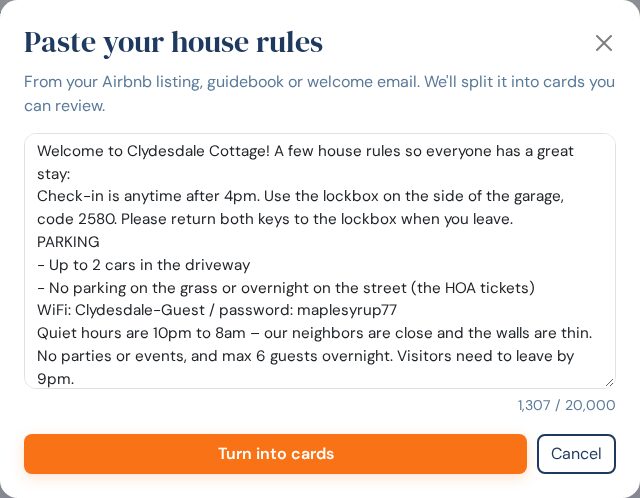
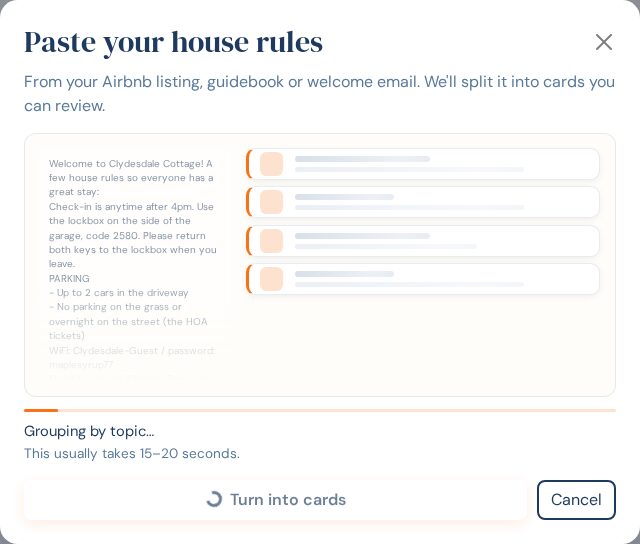
Reading and grouping the rules takes about 15 to 20 seconds, a little longer for a long list. You’ll see your text on one side and cards forming on the other while it works. Cancel stops it, and your text is still there when you come back.
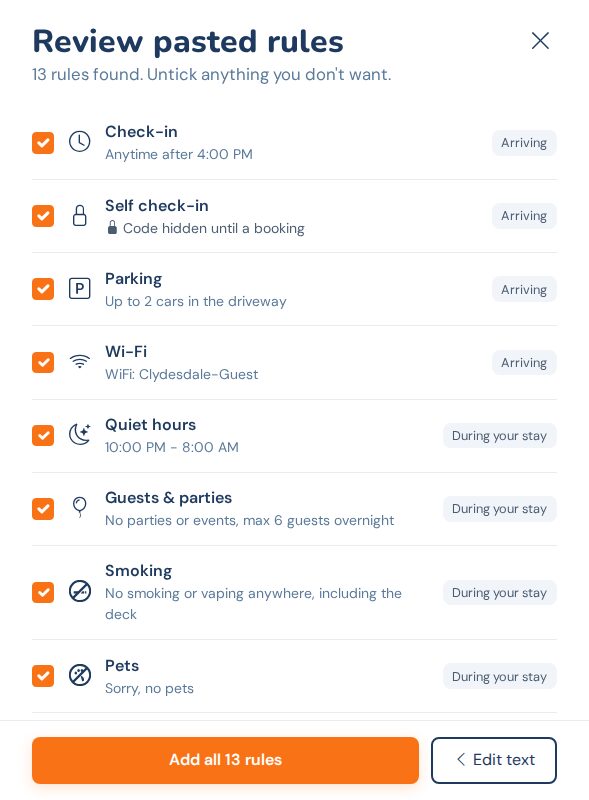
When it’s done, the review opens. It works the same way as the Airbnb import: every rule is ticked, each one shows its section, and you untick anything you don’t want before choosing Add. If something came out wrong, Edit text takes you back to your original text so you can tidy it and try again.
A few things help it do a better job:
- One rule per line or per short paragraph. A single run-on paragraph still works, but rules can get merged.
- Put the check-out steps under a heading like “Before you leave” and number them. They become your check-out list.
- Leave out the parts that aren’t rules, like directions from the airport or restaurant tips.
If nothing in the text looks like a rule, it says so and leaves your text in the box.
Codes and passwords stay private
Whichever way you bring rules in, door codes, lockbox codes and Wi-Fi passwords are always set to Only show during a booking. In the review they show as “Code hidden until a booking”. Guests see them while they have a booking, never on the TV or the guidebook between guests. You can check this on any rule afterwards in its key facts and bullet points.
Limits worth knowing
- One paste can be up to 20,000 characters. That’s several pages of text; split anything longer into two pastes.
- If you paste a lot of text in a short time, you’ll be asked to wait a few minutes before the next one.
- The Airbnb import sees only what Airbnb shows publicly, so it never brings in codes or Wi-Fi details.
- Each property can have up to 50 rules in total.
Wi-Fi goes in WiFi & check-out
If your text includes the Wi-Fi network and password, the paste turns it into a Wi-Fi rule card. For now, untick it in the review, or delete it afterwards, and enter your Wi-Fi under Guidebook > WiFi & check-out instead. That’s where the TV’s WiFi screen and its join QR code get the network and password, so guests can scan to connect. A Wi-Fi house rule card doesn’t do that. We’re working on sending Wi-Fi details from a paste to the right place automatically.
After the import
Imported rules are ordinary rules, so everything in How to Add House Rules to Your Vacation Rental TV applies: open a card to fix the wording, shorten the tile line, add a detail to a check-out step, or drag rules into a better order. It’s worth reading through them once on Preview guidebook before your next guest arrives.
Need Help?
Email support@welcomesign.com, browse the help center, or use the chat button in the bottom-right corner of your dashboard.
If an import misses something you’d expect it to find, send the text or listing link to support and we’ll take a look.