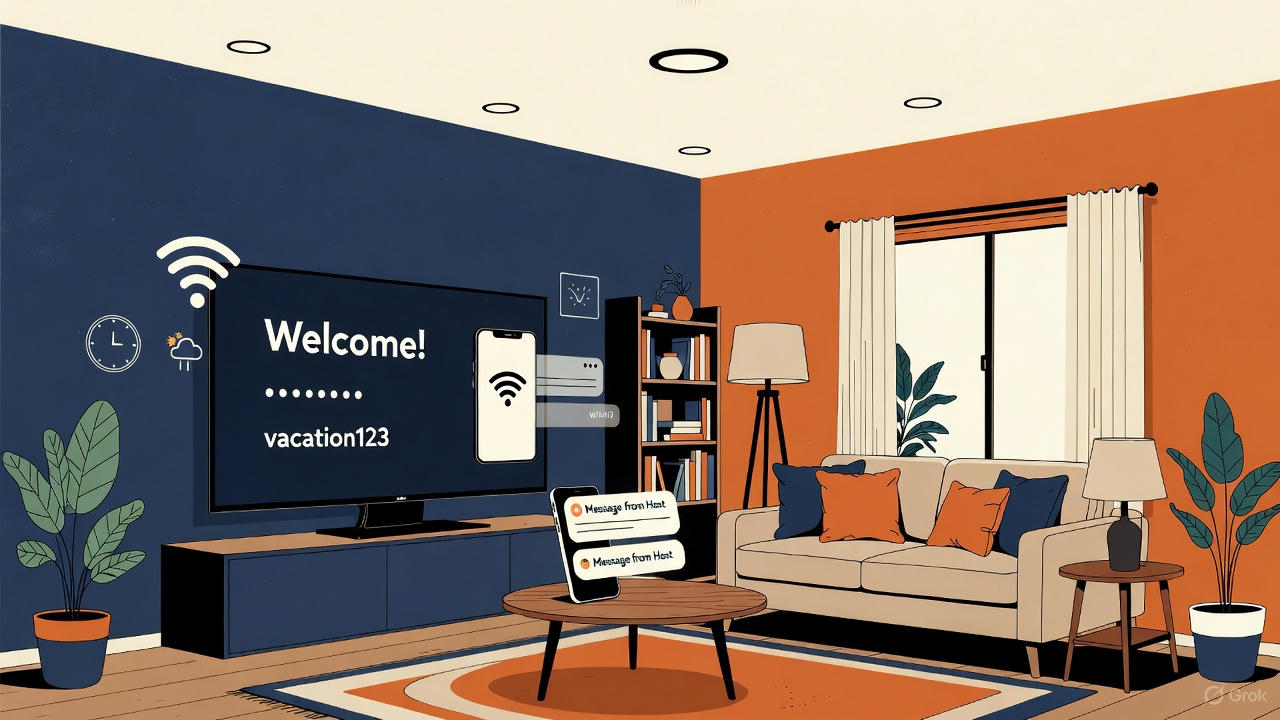
Turn your vacation rental TV into a digital welcome screen with WelcomeSign for Roku. Setup takes about 5 minutes: install the app on the Roku, open it to get a pairing code, and enter that code in your WelcomeSign dashboard.
Before You Begin
You need:
- A Roku TV or Roku streaming stick, connected to the internet. No Roku? A Roku streaming stick plugs into any TV’s HDMI port and costs about $30.
- The Roku remote.
- A WelcomeSign account (sign up free if you don’t have one) with at least one property.
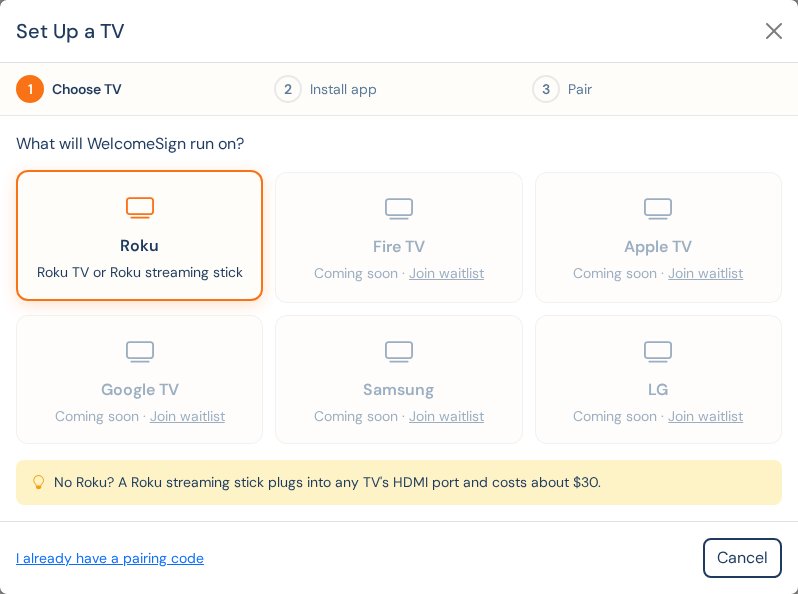
The WelcomeSign dashboard walks you through these same steps. On the Dashboard, choose Set up a TV in the “Set up your first TV” card, or open a property and choose Add New Device on the Devices tab.
Step 1: Install the Welcome Sign app on your Roku
- Press Home on your Roku remote.
- Open Streaming Store (on older Rokus it’s called Streaming Channels).
- Choose Search and type Welcome Sign.
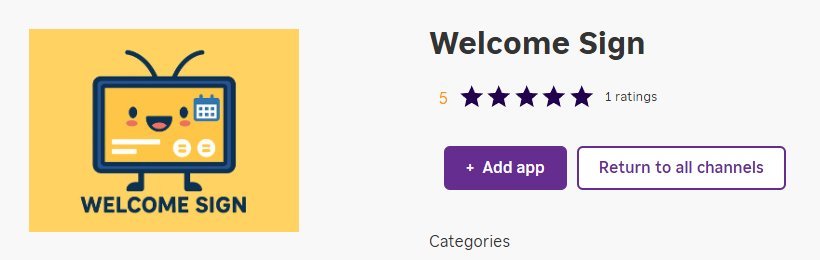
- Select Welcome Sign and choose Add app.
Look for this listing:
Or add it from your phone or computer
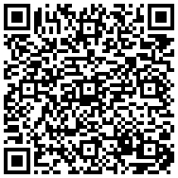
Open Welcome Sign in the Roku Channel Store, sign in to your Roku account, and choose Add app. It installs on every Roku linked to that account. You can also scan this code with your phone:
Step 2: Open the app and find your pairing code
On the Roku home screen, open Welcome Sign. The app shows a 6-character pairing code made of letters and numbers, such as 3XJAK3.
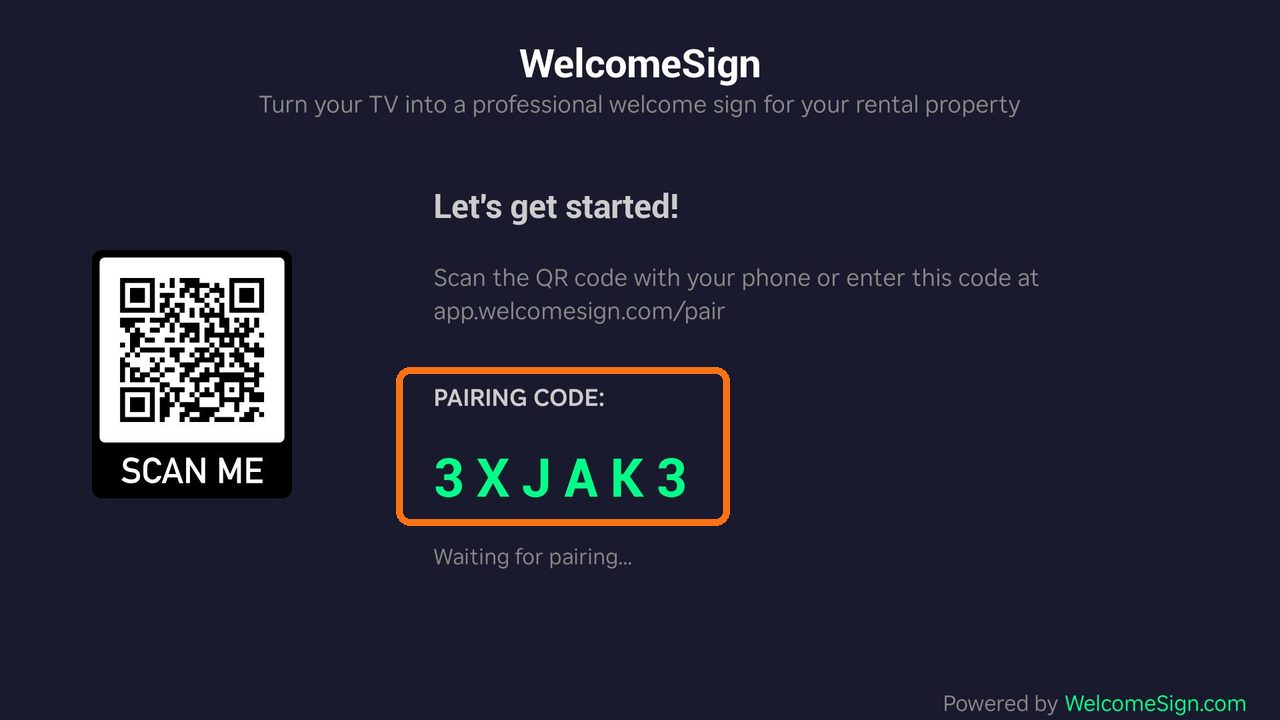
Leave this screen up. Codes last one hour, and the TV makes a new one automatically when a code expires.
Step 3: Enter the code in WelcomeSign
- Sign in to app.welcomesign.com.
- On the Dashboard, choose Set up a TV. If you already have a TV, open your property and choose Add New Device on the Devices tab.
- Choose Roku, then It’s installed. If you already have the code, choose I already have a pairing code to skip ahead.
- Type the code from your TV. Spaces and capital letters don’t matter.
- Give the TV a name, such as Living Room TV, and choose Pair TV.
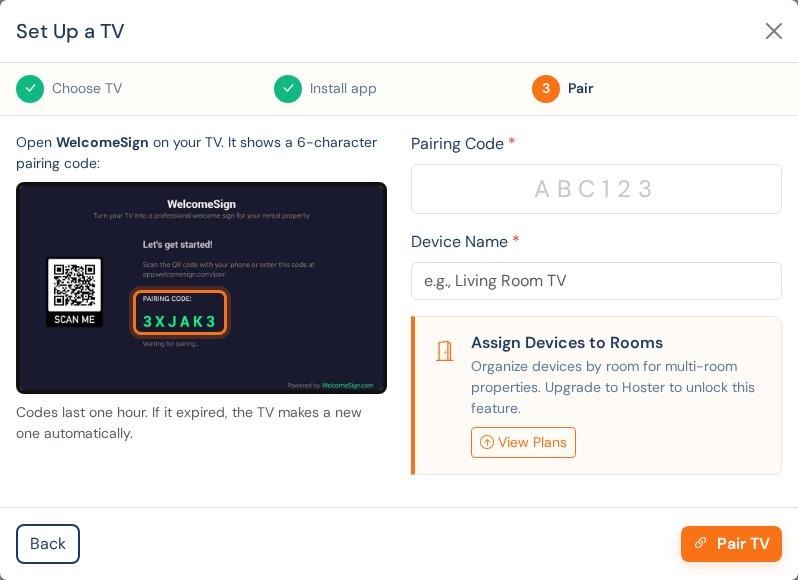
You can also scan the QR code on the TV screen with your phone, or go to app.welcomesign.com/pair, and enter the code there.
Step 4: Check the TV
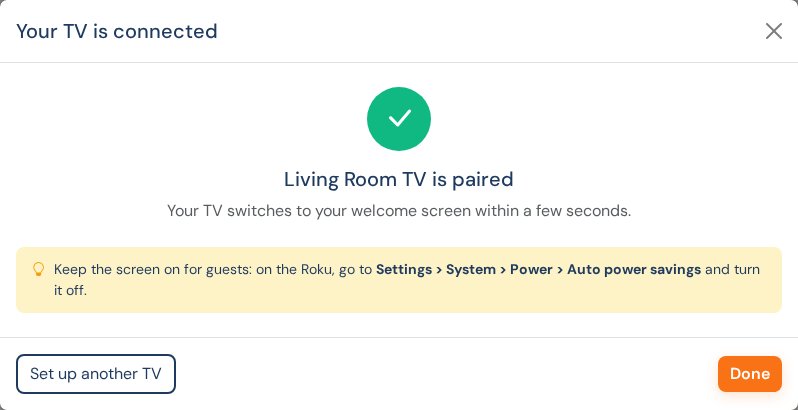
Within a few seconds the TV switches from the pairing code to your welcome screen, and the TV appears in your dashboard.
Keep the welcome screen on
Roku can turn the TV off after a period of inactivity. So guests always see your welcome screen, turn this off on the Roku: Settings > System > Power > Auto power savings.
Setting Up Additional TVs
Repeat the steps for each TV. Each Roku shows its own pairing code. In the dashboard, choose Set up another TV after pairing, or Add New Device on the property’s Devices tab.
On the Hoster plan and above, you can assign each TV to a room so different rooms show different content.
Troubleshooting
I can’t find Welcome Sign in the store
- Search for Welcome Sign with a space.
- Add it from your phone or computer with the Roku Channel Store link above.
- Make sure the Roku is up to date: Settings > System > System update.
The dashboard says the code is invalid
- Check the code on the TV again. Codes use letters and numbers.
- If the code expired, wait for the TV to show a new one, or close and reopen the Welcome Sign app.
The TV doesn’t appear in my dashboard
- Check that you’re signed in to the right WelcomeSign account and pairing to the right property.
- Check that the Roku is connected to the internet.
The TV goes dark or shows the screensaver
- Turn off Auto power savings as described above.
My changes don’t show on the TV
- Content updates automatically. To force a refresh, close and reopen the Welcome Sign app.
Need Help?
- Email: support@welcomesign.com
- Help Center: WelcomeSign Support
- Live chat: Use the chat button in the bottom-right corner of your dashboard.
Using another kind of TV? Welcome Sign for Fire TV, Apple TV, Google TV, Samsung and LG is coming soon. Join the waitlist to hear when yours is ready.