The background is the first thing a guest notices when the TV comes on, before they’ve read a word. A photo of your own view, or of somewhere they’ll be standing tomorrow, does more to make the place feel looked after than any welcome message.
You can pick one from the library or upload your own. Either way it takes about a minute.
Where to find it
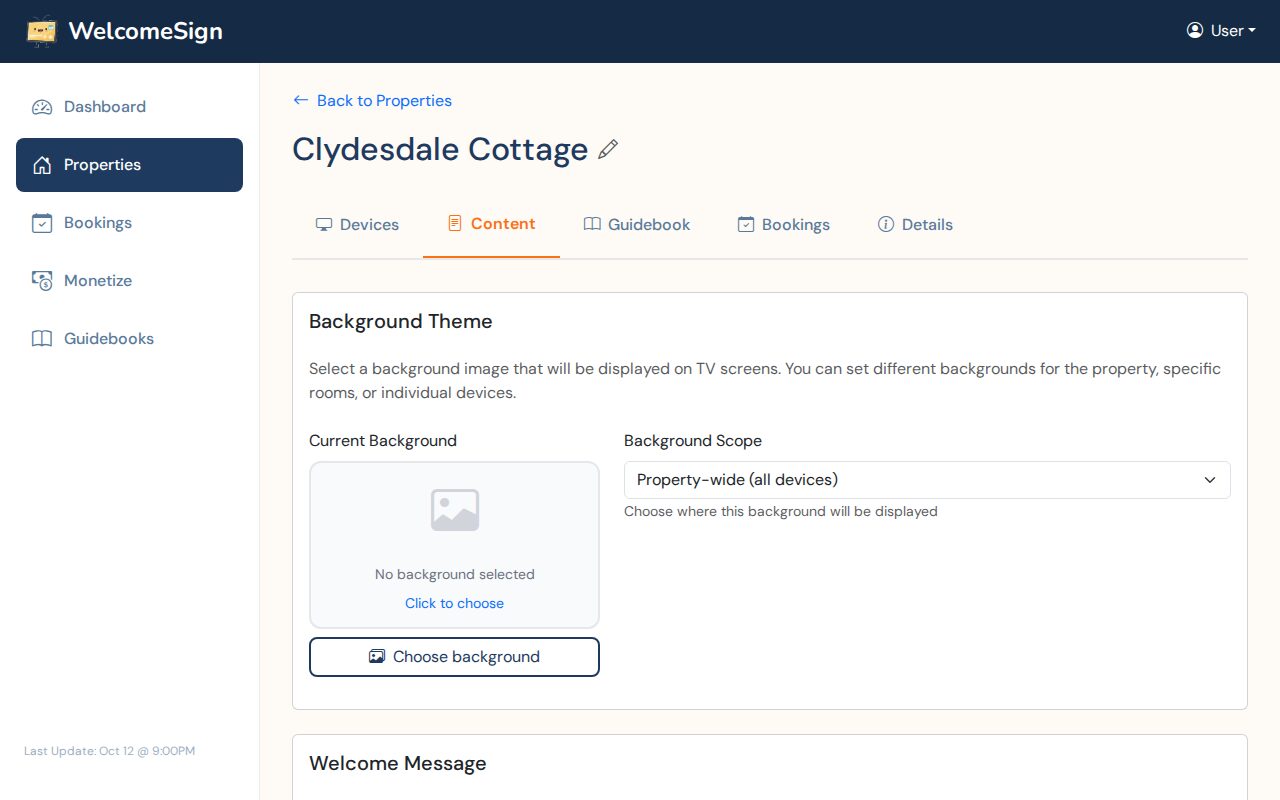
- Sign in to app.welcomesign.com and open your property.
- Choose the Content tab.
- Under Background Theme, choose Choose background. If you’ve already set one, the button says Change background.
Picking from the library
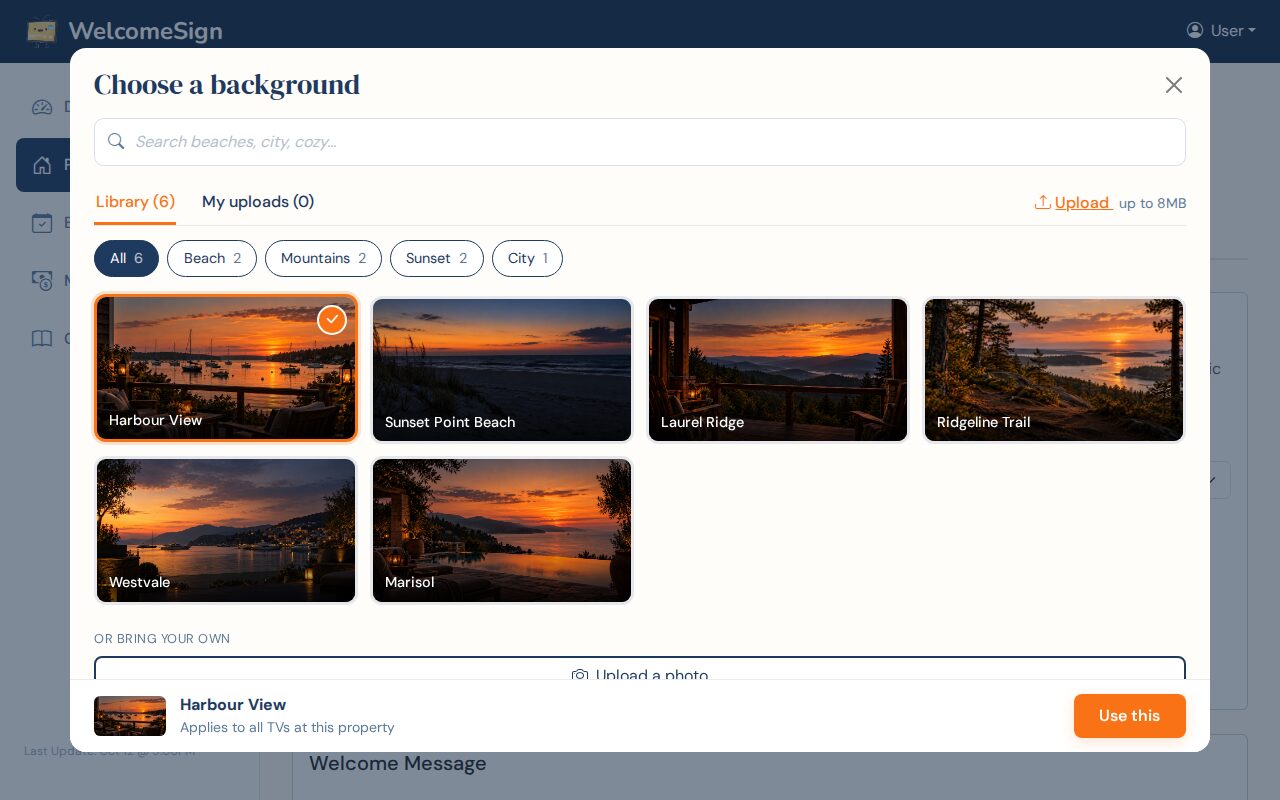
The picker opens on the Library tab. Type in the search box, or use the chips under it to narrow things down by kind: beach, mountains, sunset, city and so on. Each chip shows how many photos it has.
Click a photo to select it. The bar at the bottom shows what you’ve picked and where it will apply. Choose Use this and it’s saved; there’s no separate save button.
Uploading your own photo
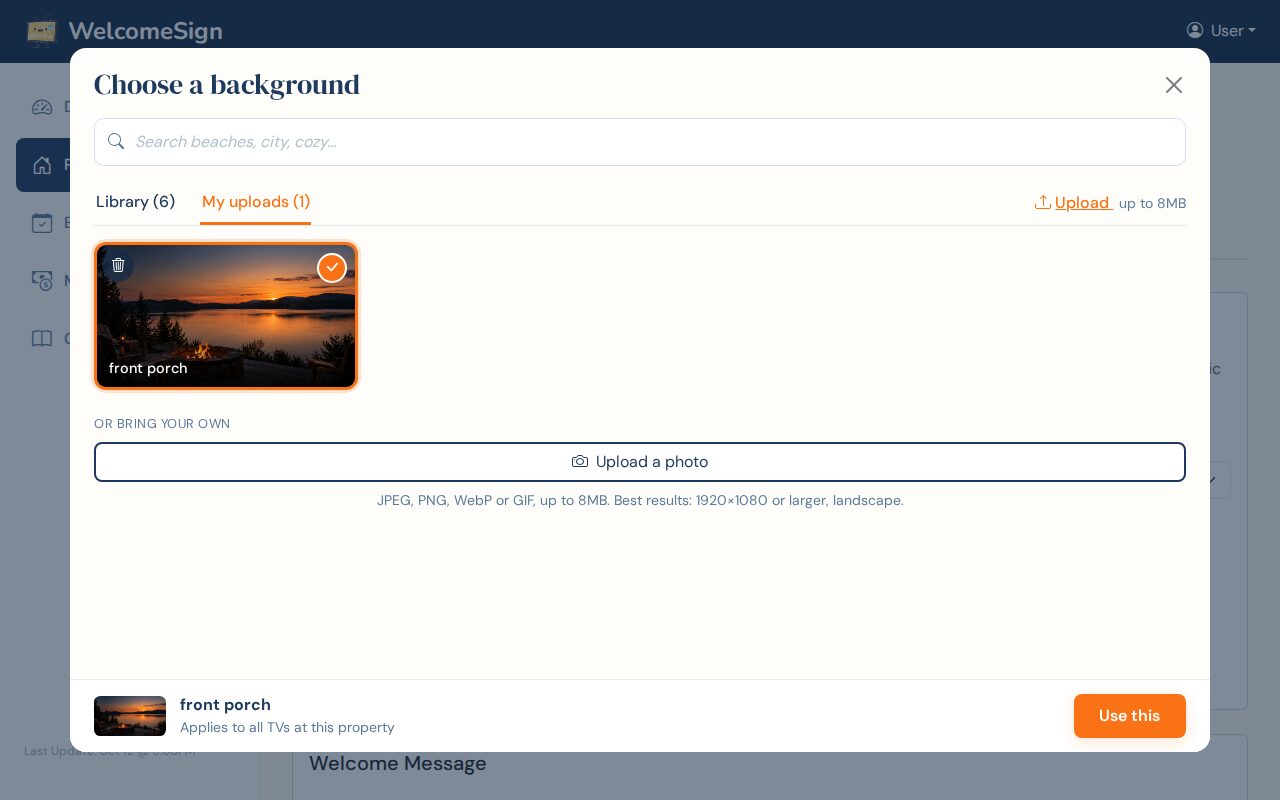
Choose Upload at the top right of the picker, or Upload a photo under the grid. Pick the file, and it appears under My uploads, already selected. Choose Use this to put it on the TV.
A few things worth knowing about the file:
- JPEG, PNG, WebP or GIF, up to 8 MB. A photo straight off a phone is usually 3 to 5 MB, so it goes through as it is.
- 1920×1080 or larger gives the best result. Smaller photos get stretched and look soft on a big TV.
- Shoot it landscape. A portrait photo has to be cropped hard to fill a TV, and you lose most of it.
- The photo takes its name from the file name, so
front-porch.jpgshows up as “front porch”. Rename the file first if you want something tidier.
If a file is too big or the wrong type, the picker tells you which it is, including the size it found. The usual fix for “too big” is to send the photo to yourself by email or message at “large” size, which brings most phone photos well under the limit.
Uploads belong to your account. Anyone on your team can use them on any of your properties, and nobody outside your account can see them.
What makes a good TV background
Your text sits on top of the photo, so the photo has to leave room for it.
- Pick a photo with a calm area. Sky, water, a lawn or a plain wall all work. A busy photo with detail edge to edge makes the WiFi password hard to read.
- Darker photos are easier to read text over than bright ones. A sunset beats midday sun on white sand.
- Use your own view if you have one. The deck at golden hour, the lake from the dock, the street on a quiet morning. Guests like recognizing it the next day.
- Leave people out, including yourself. It’s their holiday.
- Skip photos with text in them, such as a sign or a watermark. It competes with the welcome screen’s own text.
If you don’t have a good photo yet, start with one from the library and swap it when you do.
One background or several
A background applies to every TV at the property unless you say otherwise. Background Scope, next to the preview, is where you change that: you can set a different photo for a particular room or for a single TV. Rooms are part of the Hoster plan and above. A bedroom TV with a quieter photo than the living room is a nice touch if you have the photos for it.
Replacing or deleting a photo
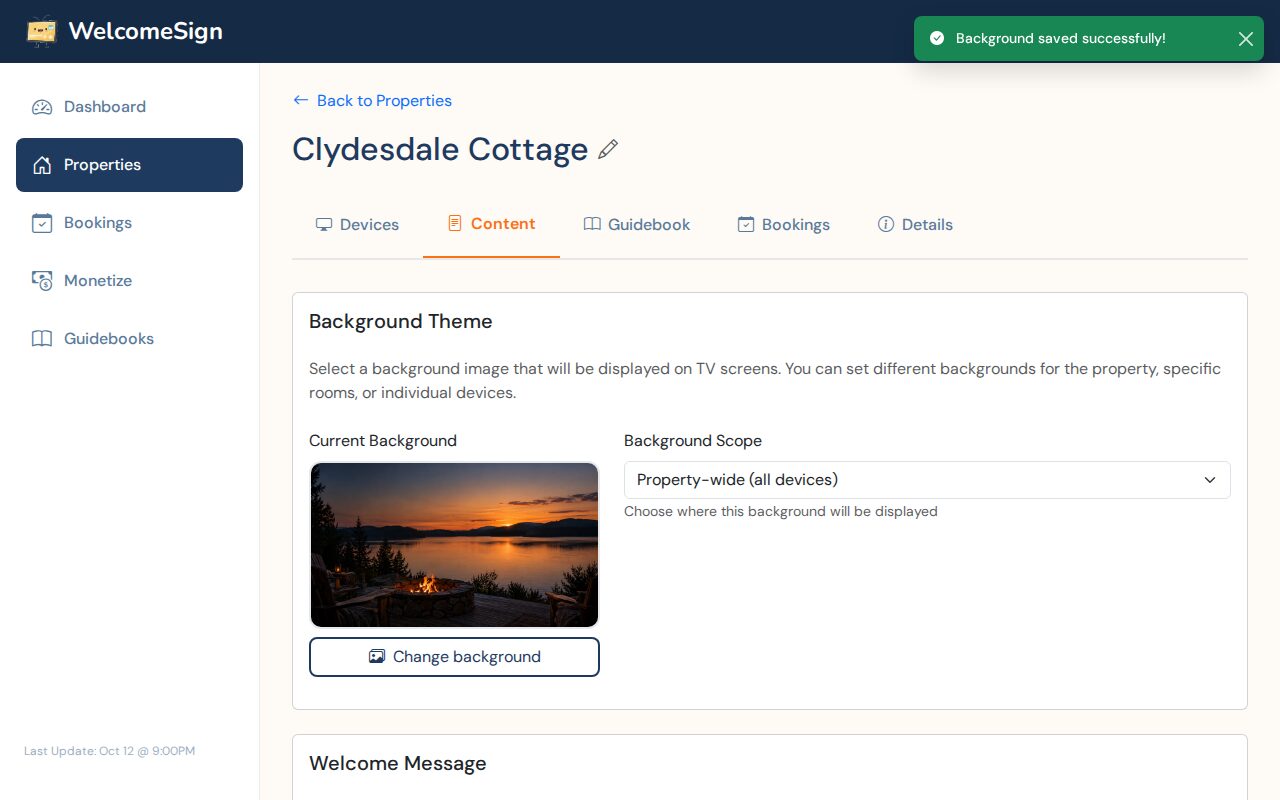
To change the background, choose Change background and pick another one. Reopening the picker shows your current choice already selected.
To delete one of your uploads, open My uploads and use the trash icon on the photo. If that photo is currently on a TV, you’re shown where it’s used and asked to choose a replacement first, so a TV is never left with a blank screen.
Library photos can’t be deleted, only your own uploads.
When it shows on the TV
The TV picks up the new background by itself. If it hasn’t changed after a minute, close and reopen the Welcome Sign app on the TV.
Need Help?
Email support@welcomesign.com, or use the chat button in the bottom-right corner of your dashboard.