“Where should we eat?” is the question every host answers by text, usually while standing in a grocery line. Guests don’t want a list of forty places. They want the five you’d send a friend to, with one line about why.
This guide covers adding those places and the local events worth knowing about. Both live under the same tab, and both show up for guests on the TV and in the guidebook on their phone.
Where to find it
- Sign in to app.welcomesign.com and open your property.
- Choose the Guidebook tab.
- Choose Recommendations or Events.
Adding a place
Choose Add place. If the list is empty, the button says Add your first place. The place opens in a drawer on the right.
Start with Find on Google
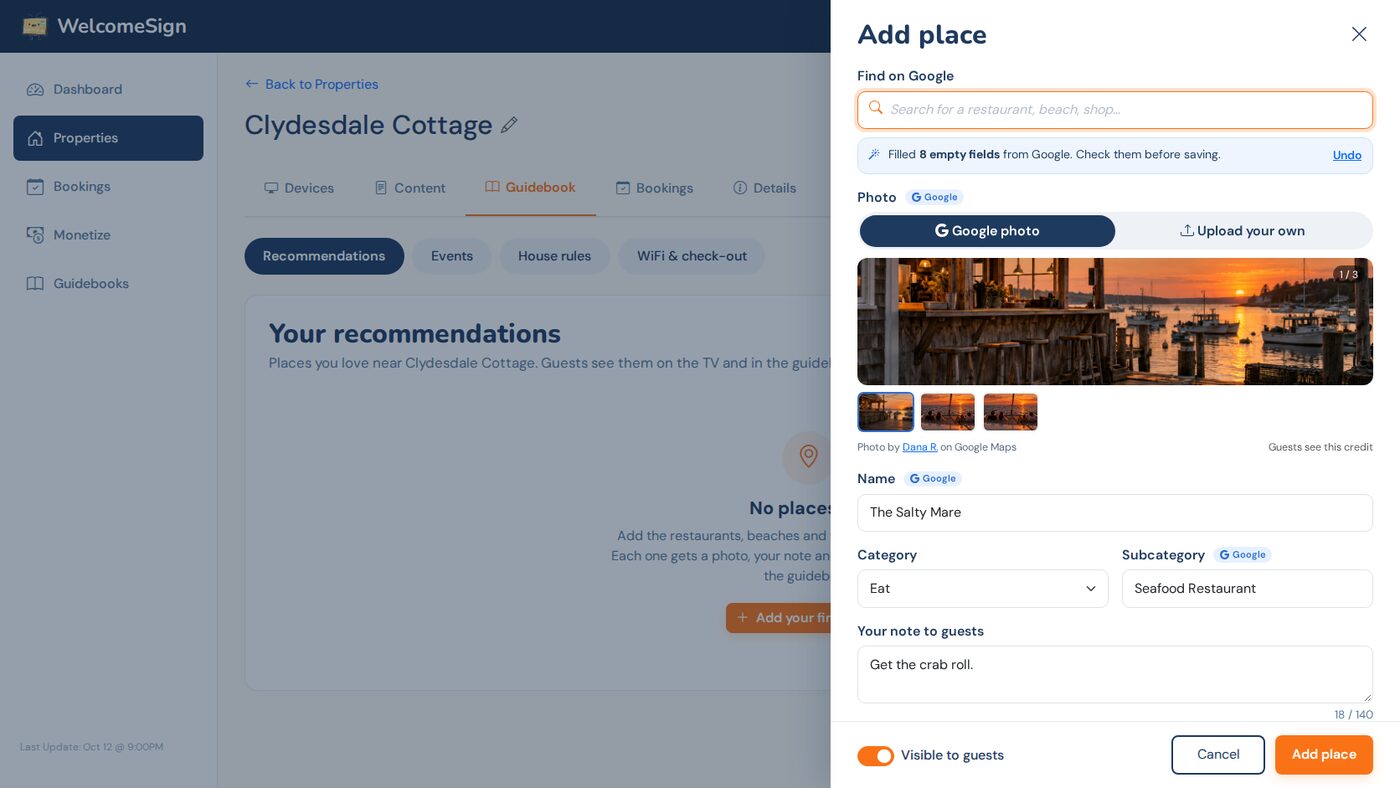
Type the name into Find on Google and pick the place from the suggestions. It fills in what Google knows: the address, phone number, price level, opening hours and a directions link. A line under the search box tells you how many fields it filled, with Undo next to it.
It only fills fields that are empty. If you’ve already written the name the way locals say it, your version stays. Check the hours before you save; small places often have the wrong ones on Google.
The photo
You get two choices under Photo:
- Google photo shows up to ten photos of the place. Pick the one that looks like what a guest will see when they walk up. Google photos carry the photographer’s credit, and guests see that credit on the place’s page.
- Upload your own takes a photo from your phone or computer. Your own photo has no credit line.
A place with no photo still works, but the ones with photos get tapped.
Your note to guests
This is the part that makes it your recommendation and not a search result. You have 140 characters. Write what you’d say out loud: “Get the crab roll. Ask for the patio.” beats “Great seafood restaurant with a nice atmosphere.”
Pick a Category (Eat, Drink, Do, Beach and so on) so guests can filter, and add a Subcategory such as Seafood or Coffee if it helps.
Opening hours
Choose the hours row to open the hours editor. Turn each day on or off, set the open and close times, and use Add hours for a place that closes between lunch and dinner. Copy Monday to all days saves setting each day by hand; then switch off the day they’re closed.
There’s a note field for the things a timetable can’t say, like “Kitchen closes 30 minutes before close”.
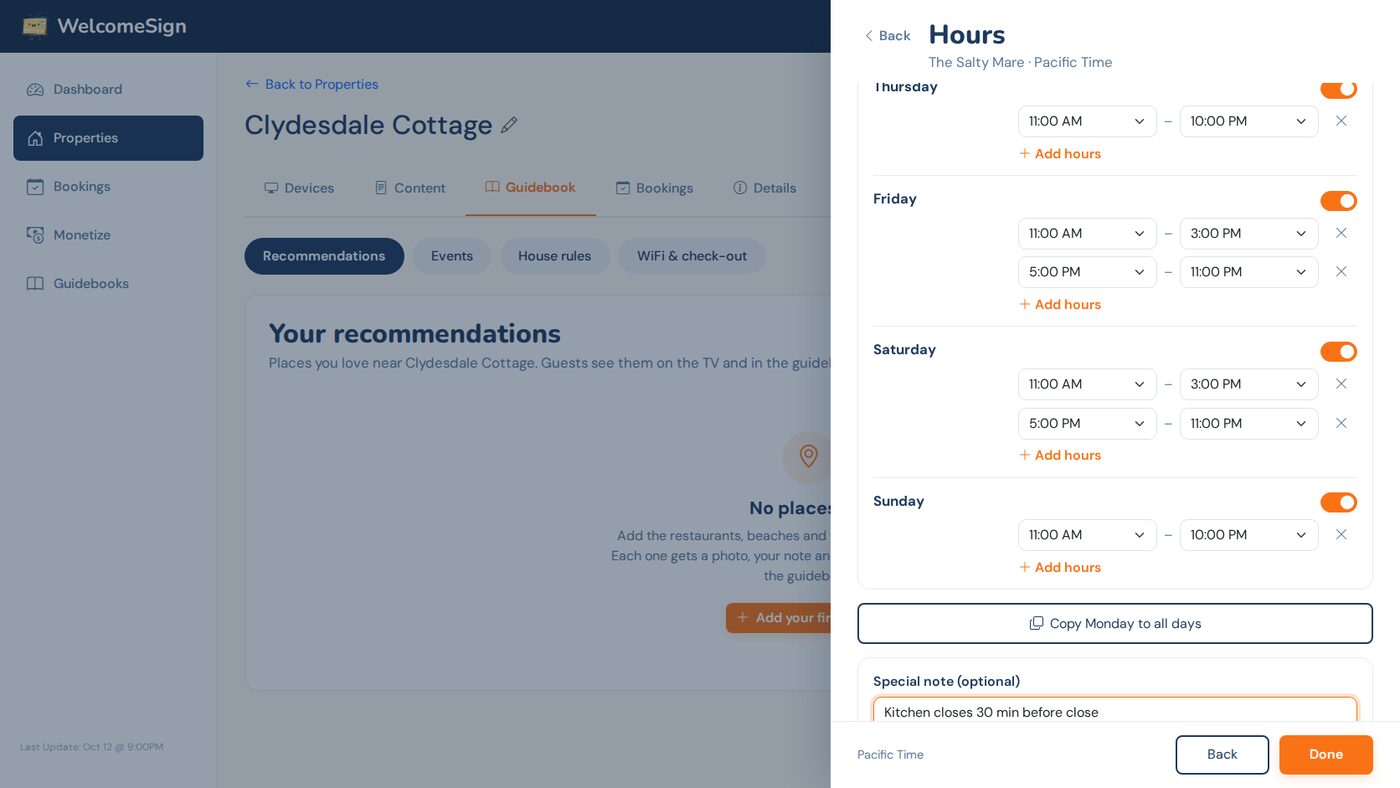
Hours are in the property’s time zone, not the time zone of whatever device you’re on. That matters if you manage a rental from another state.
One thing to keep out of a note
If you type something that looks like a door or gate code into a place’s note, the drawer warns you after you save. Recommendations are public: they show on the TV between guests too. Codes belong in a house rule marked Only show during a booking, which is covered in How to Add House Rules to Your Vacation Rental TV.
Choose Add place to save.
Ordering, hiding and removing places
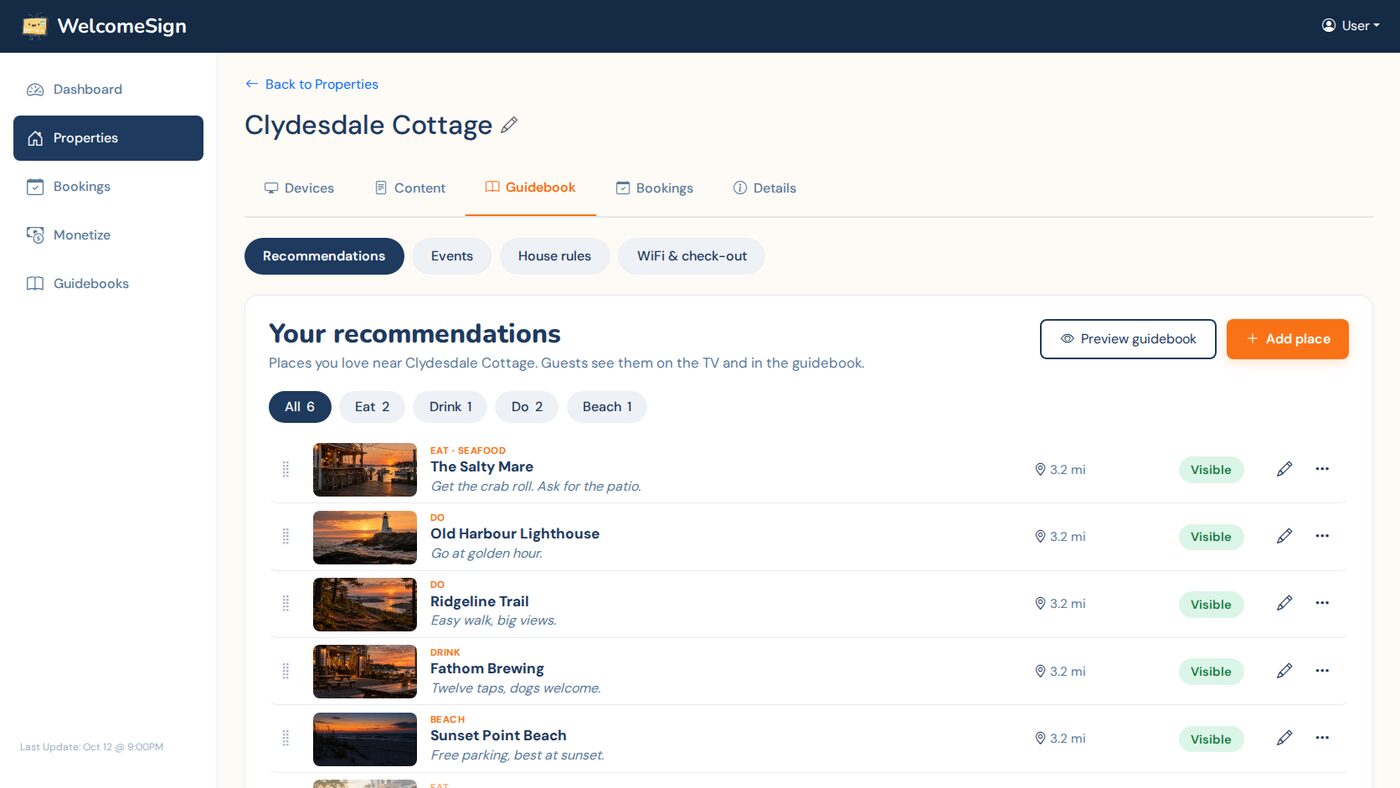
Guests see places in the order you set.
- Drag a place by the handle on its left edge. From the keyboard, focus the handle and use the up and down arrow keys.
- Click the Visible pill to hide a place without deleting it. That’s handy for a restaurant that closes for the winter. Click Hidden to bring it back.
- The pencil opens the place for editing. The ⋯ menu has hide, directions and delete.
The chips above the list filter by category, and each shows how many places are in it.
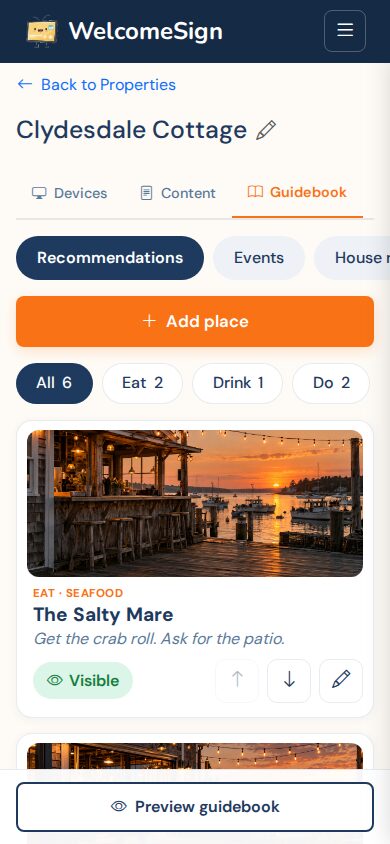
On a phone the list works the same way, with up and down buttons in place of dragging.
How many places you can add
The limit is per account, across all your properties: 5 places on the Free plan, 100 on Hoster and 200 on Business. The list shows how many you’ve used.
Five is enough to start with. One place to eat, one for coffee, one beach or trail, one for a rainy day, and the nearest grocery store covers most of what guests ask.
Adding an event
Choose Events, then Add event.
Give it a name, a category and a date, then the start and end times. No end time is fine for something like a fireworks show. A few options change how it’s listed:
- All day hides the times, for a festival or a market that runs open to close.
- Runs over several days adds a last day, for a fair that’s on all weekend.
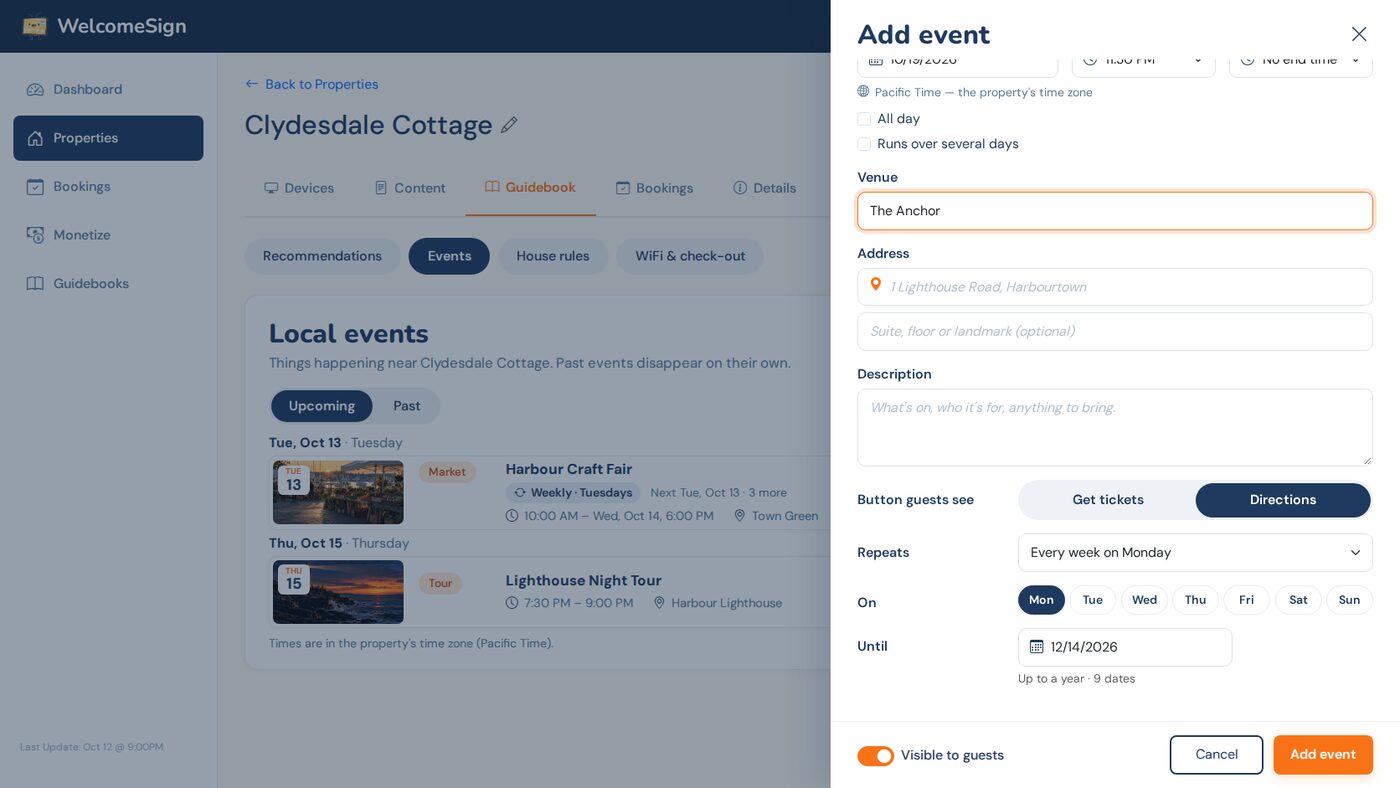
- Venue looks the place up on Google and fills in the address. If the event is at one of the places you’ve already recommended, link it with At one of your places? and guests can jump between the two.
- Button guests see is either Get tickets, with a link you paste in, or Directions.
Events that repeat every week
Set Repeats to weekly, then pick the days under On and a date under Until. A farmers market every Saturday, or live music on Thursdays and Sundays, is one event you enter once. It can repeat for up to a year, and the line under Until tells you how many dates that makes.
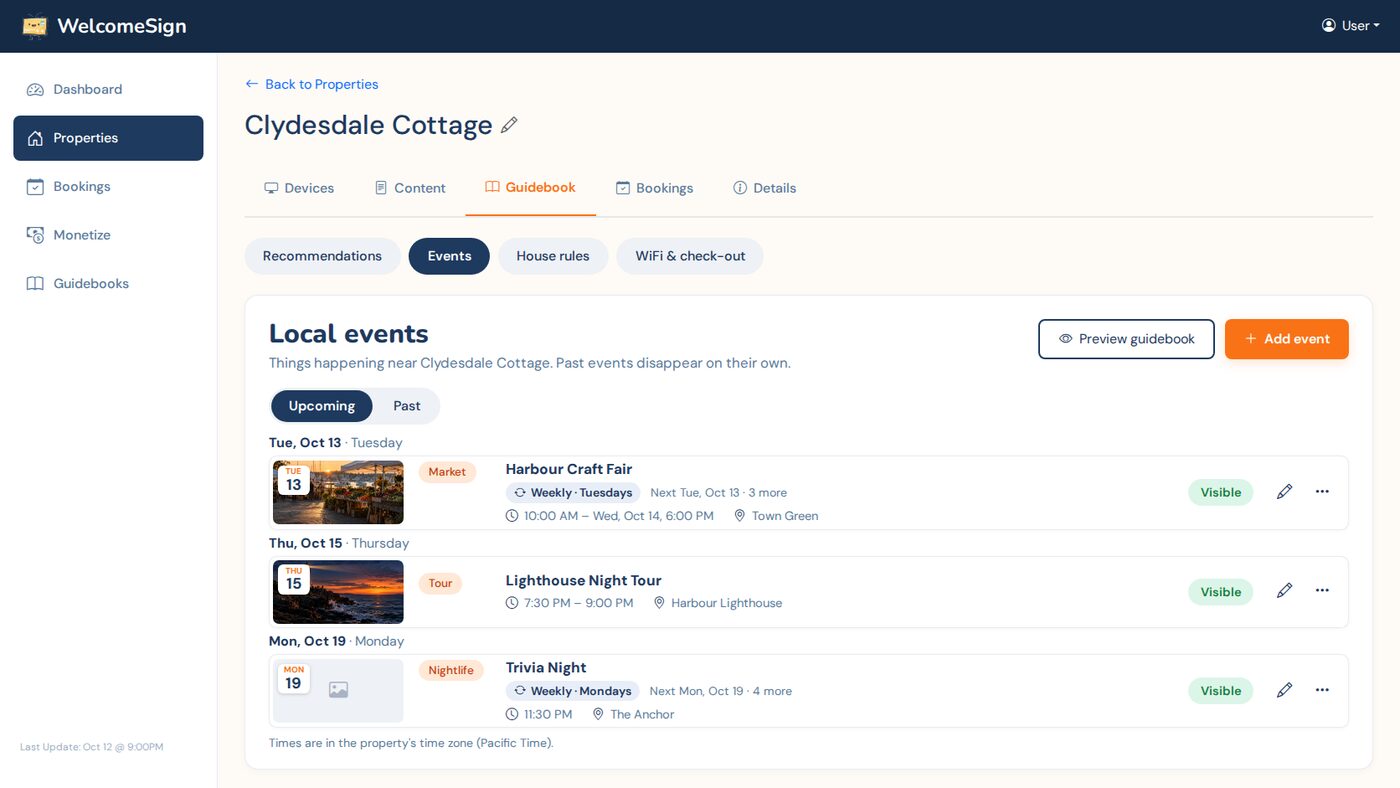
In the list a weekly event is a single row with a “Weekly” tag and its next date. Editing it changes every date in the series.
Past events take care of themselves
Events drop off the guest view once they’re over. You’ll find them under Past if you want to copy the details for next year. A property can have up to 100 upcoming events.
What guests see
Use Preview guidebook at the top of either page to see the result the way a guest does.
In the guidebook on a guest’s phone, places are under Explore with your note, the hours, a call button and directions. Events have their own tab, sorted by date. Both are live today, and The Phone Guidebook: What Your Guests See walks through it.
On the TV, your recommendations show on Roku today. The redesigned TV app adds photos to them, an Events screen, and a QR code on each one that opens it on the guest’s phone. That update is being submitted to the Roku Channel Store and installs on its own once it’s approved.
Tips
- Add the grocery store and the pharmacy. Nobody asks for them until 9 PM on arrival day.
- Rewrite your notes once a season. “Closed Mondays in winter” is worth more than another adjective.
- If a place shuts down, hide it straight away and delete it later. A guest who drives to a closed restaurant remembers it.
Need Help?
Email support@welcomesign.com, or use the chat button in the bottom-right corner of your dashboard.