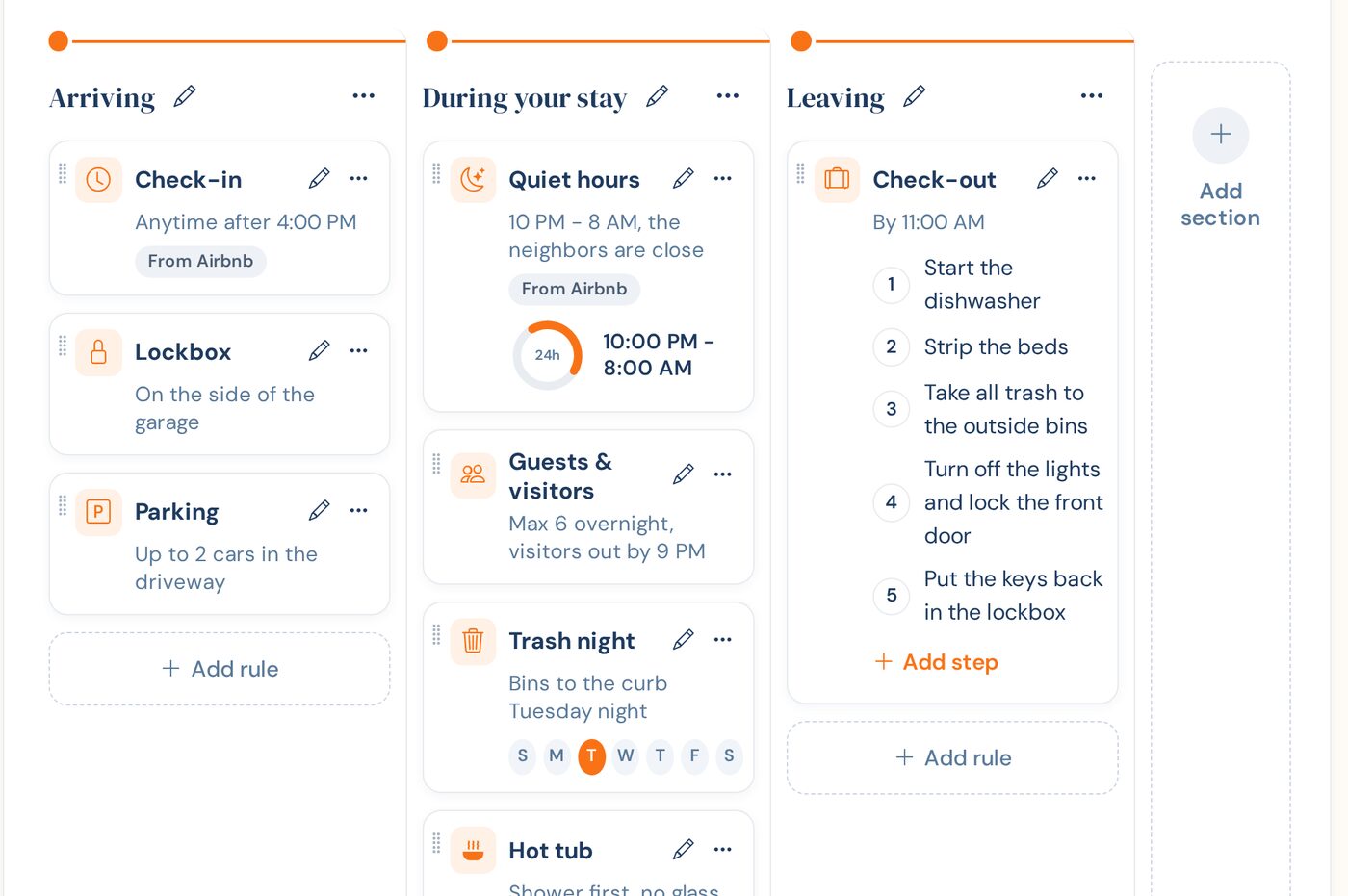
House rules work best when guests come across them at the moment they matter: parking when they pull in, quiet hours on the first evening, the check-out list on the last morning. The house rules editor in WelcomeSign is laid out the same way, as a timeline of the stay, and each rule becomes a card on the TV and in the phone guidebook.
This guide covers writing rules by hand. If your rules already live on Airbnb or in a welcome email, see Import Your House Rules from Airbnb or Paste Them In and come back here to tidy them up.
Where to find it
- Sign in to app.welcomesign.com and open your property.
- Choose the Guidebook tab.
- Choose House rules.
Sections
Every property starts with three sections: Arriving, During your stay and Leaving. They’re only a starting point.
- To rename one, choose the pencil next to its name, type the new name and press Enter. Esc cancels.
- To add one, choose Add section at the end of the row. A pool, a dock or a separate guest suite can each get their own.
- To delete one, open the ⋯ menu on the section and choose Delete section. The rules in it aren’t deleted; they move to Other rules, and you can move them into another section from there.
Adding a rule
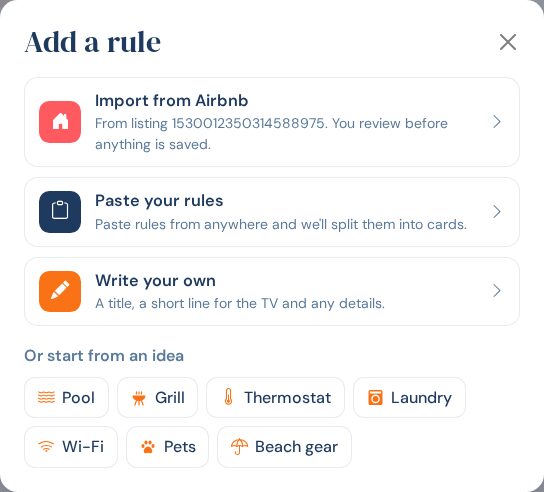
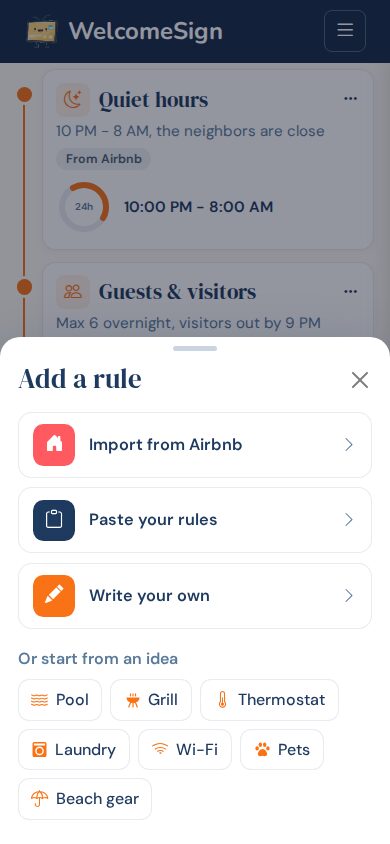
Choose Add rule at the top of the page, or + Add rule under a section to put the new rule straight into that section. You get three options:
- Bring in rules you already have with Import from Airbnb or Paste your rules, both covered in the import guide.
- Start from a blank rule with Write your own.
Below them, Or start from an idea has chips for common rules such as Pool, Grill, Thermostat, Laundry, Pets and Beach gear. An idea fills in the title and icon for you; ideas you’ve already used drop off the list.
Filling in the rule
The rule opens in a drawer on the right. Only the title is required.
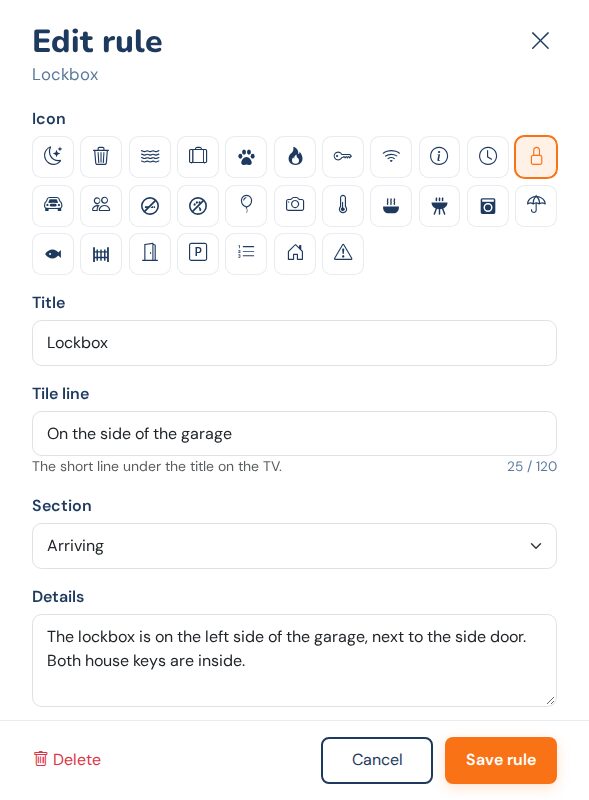
Pick an Icon for the card on the TV, then give the rule a short, plain Title such as “Lockbox” or “Quiet hours”.
The Tile line is the one line guests see under the title on the TV, up to 120 characters. Make it the part they need at a glance, for example “10 PM to 8 AM, the neighbors are close”. Section sets where the rule sits on the timeline.
Use Details for the longer explanation guests see when they open the rule: where, when, and why it matters. Under Key facts you can add short label and value pairs, such as HOURS 10:00 PM - 8:00 AM or DAY Tuesday; a time range gets a small 24-hour clock on the card, and a DAY fact gets a weekday picker. Bullet points are for a few separate points that don’t need a paragraph.
Door codes: Only show during a booking
Every key fact and every bullet has an Only show during a booking checkbox. Use it for door codes, lockbox codes and gate codes. Guests see the code while they have a booking; between guests it never appears on the TV or in the public guidebook.
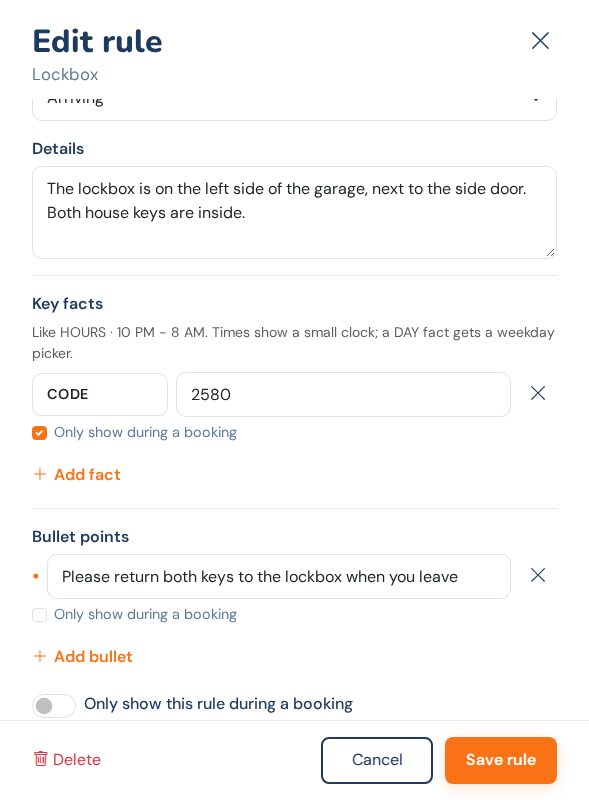
To hide a whole rule between guests, turn on Only show this rule during a booking at the bottom of the drawer. If you save a rule with something that looks like a code and it’s still public, the drawer warns you. It doesn’t block the save, so check the warning rather than clicking past it.
Keep codes out of the title and the tile line. Those are public, so put the code in a booking-only key fact and describe where the lockbox is in the tile line instead.
Choose Save rule (or Add rule for a new one) when you’re done.
The check-out list
The check-out list is a special rule: a set of numbered steps. Each property has one. To create it, choose Write your own and pick Check-out list under Type. If you already have one, add steps to it instead.
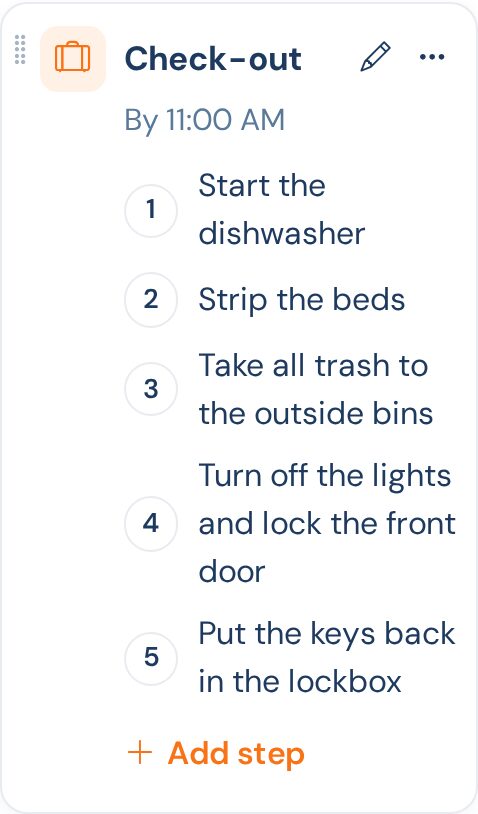
- To add a step without opening anything, choose Add step on the card, type it and press Enter. The field stays open for the next one.
- To add a detail under a step, reorder steps or remove them, open the card with the pencil. Each step has an optional detail line, such as “Leave the sheets on the bathroom floor” under “Strip the beds”.
- If you leave the tile line empty, the TV shows the guest’s own check-out time from their booking.
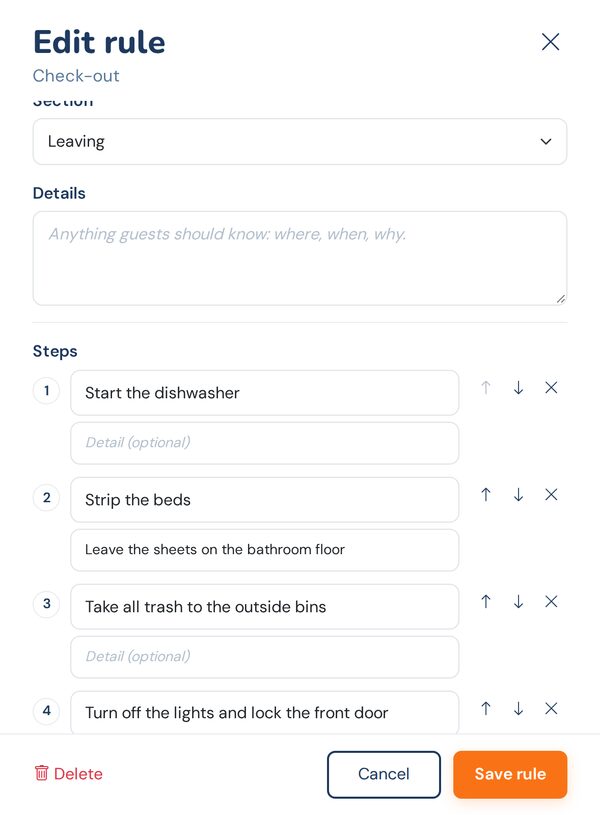
On the TV it’s a list to read. In the phone guidebook, guests can tick steps off on their own phone if they find that handy, but nobody is asked to and you aren’t told either way. So write steps you’d be happy with a guest actually doing, and keep it to five or six. A twelve-step list reads like a chore chart and gets skipped.
Reordering
Guests see rules in the order you set, so put the important ones first in each section.
- Drag a card by the handle on its left edge, within a section or into another one.
- From the keyboard, focus the drag handle and use the up and down arrow keys. Moving past the end of a section carries the rule into the next one.
- Or open the card’s ⋯ menu and choose Move up, Move down, or a section name under Move to.
The same menu has Delete.
On your phone
The editor works on a phone too. Sections become pills across the top; tap one to see its rules. + Add rule opens the same options as a sheet from the bottom of the screen.
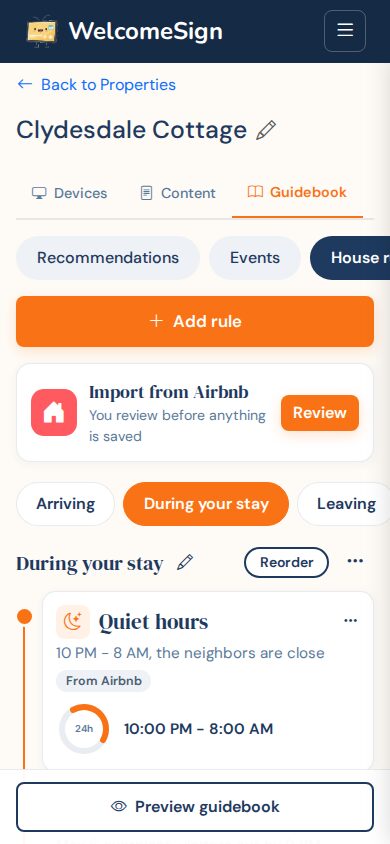
There’s no dragging on a phone. Tap Reorder next to the section name, use the up and down arrows that appear on each card, then tap Done.
What guests see
On the TV, rules show on the House Rules screen, one tile per rule with its icon, title and tile line. Guests move around with the arrows on the remote and press OK to open a rule.
An open rule shows the details, key facts and bullets, with a QR code so the guest can save it to their phone. A code you’ve marked Only show during a booking appears here only while a booking is on, and is left out between guests.
The QR code opens the phone guidebook, which has the same rules. During a booking it also has the check-out list and any booking-only codes. Without a booking, it shows only the public rules.
The TV app is live on Roku today. The House Rules screen shown here is part of the redesigned app, which reaches Roku as an automatic update once the Channel Store approves it. The Samsung, LG and Fire TV apps are built and being submitted to their stores.
Tips
- Use Preview guidebook at the top of the page to check the result the way a guest sees it.
- Each property can have up to 50 rules. If you get near that, fold related rules together: “Hot tub” can carry its hours, cover and safety notes in one card.
- Wi-Fi details belong under Guidebook > WiFi & check-out, not in a house rule. The TV’s WiFi screen and its join QR code read from there.
Need Help?
Email support@welcomesign.com, browse the help center, or use the chat button in the bottom-right corner of your dashboard.
Questions about house rules or anything else in your dashboard? Our support team is happy to help.