Sharing one login works until it doesn’t. The cleaner changes the password by accident, a co-host moves on and still has it, or you can’t tell who edited the check-out time. Each person who helps with your rental can have their own login instead, with access that matches what they do.
Where to find it
Open the menu under your name at the top right of the dashboard and choose Team.
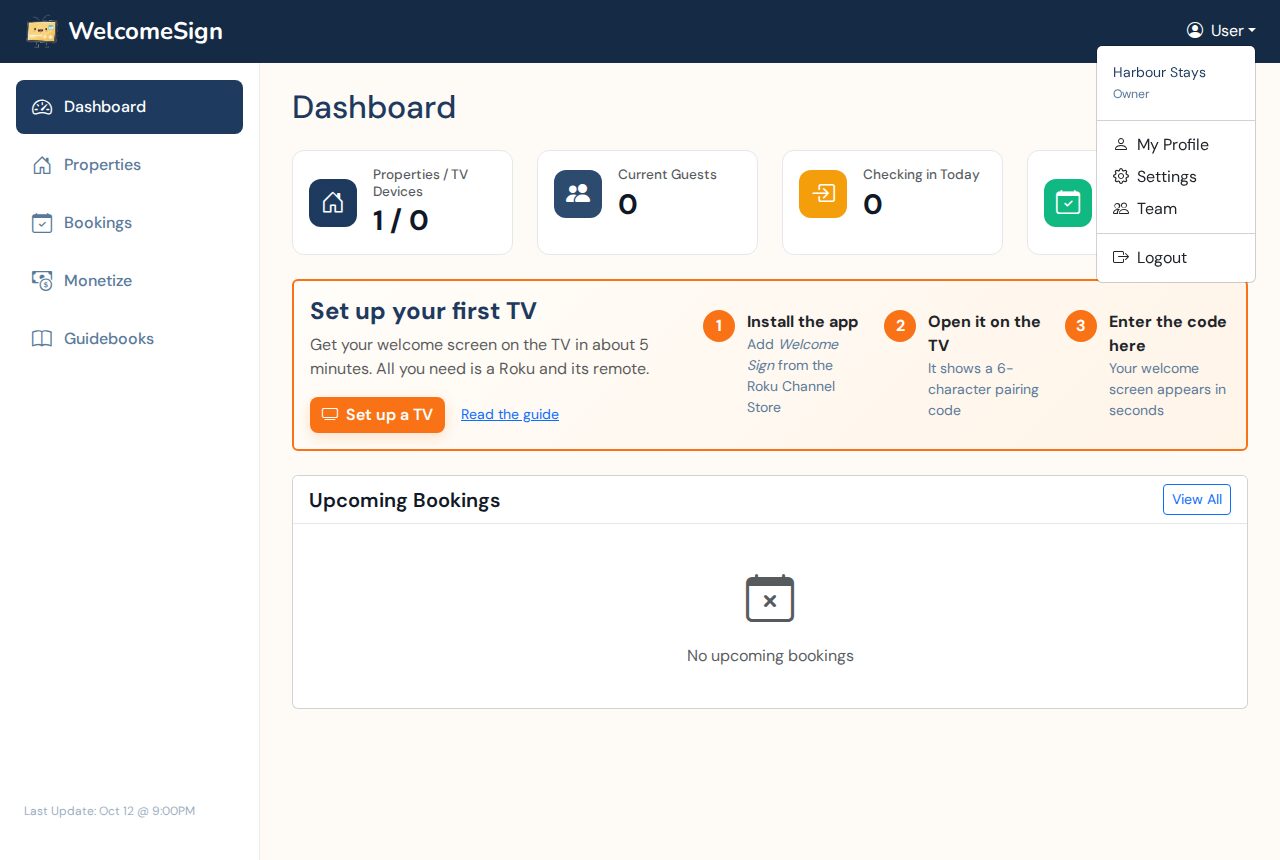
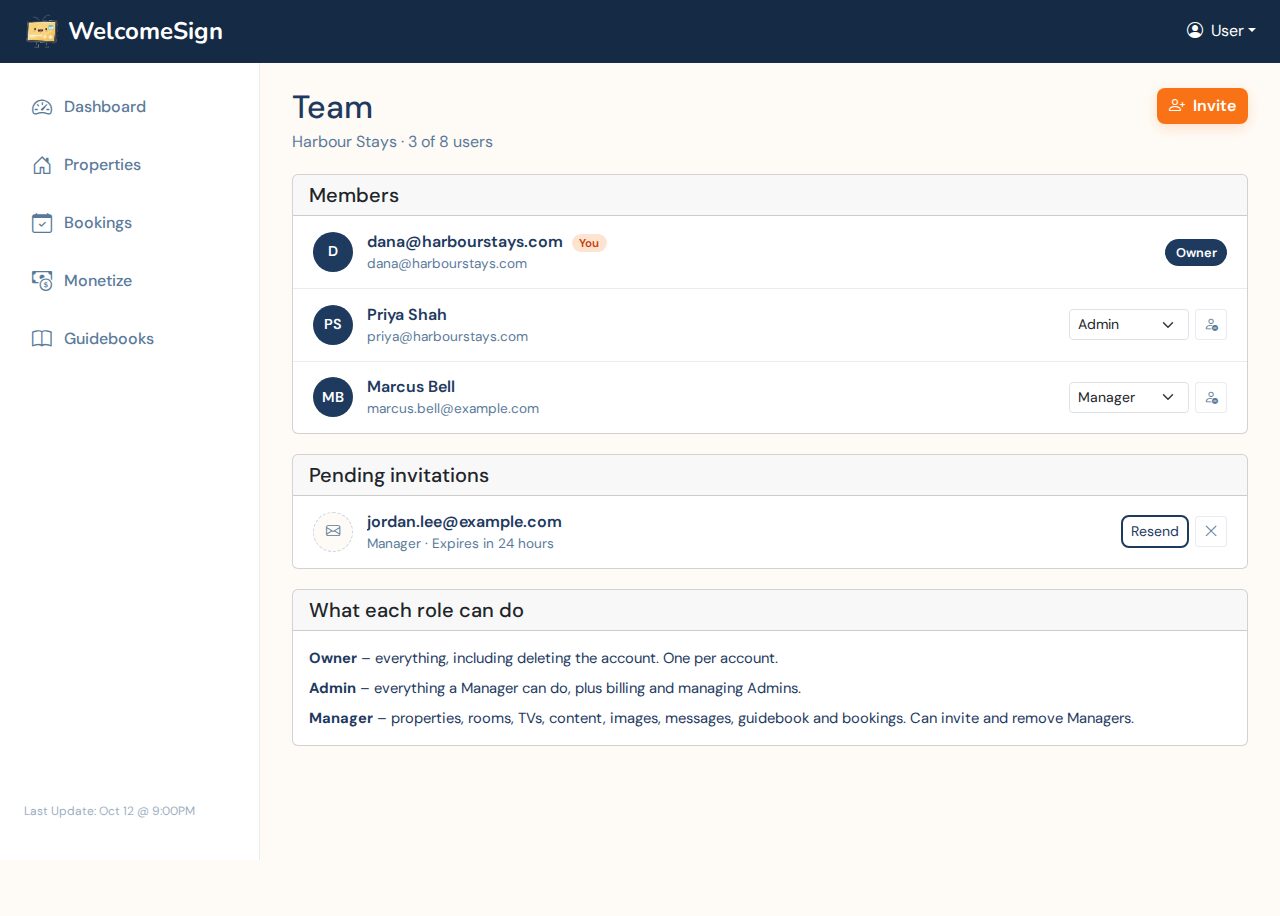
The Team page lists everyone on the account, any invitations still waiting, and a short reminder of what each role can do. The line under the title shows how many of your plan’s seats are used, such as “3 of 8 users”.
Sending an invite
- Choose Invite.
- Enter the person’s email address. This becomes their login.
- Pick a role, Admin or Manager.
- Choose Send invitation.
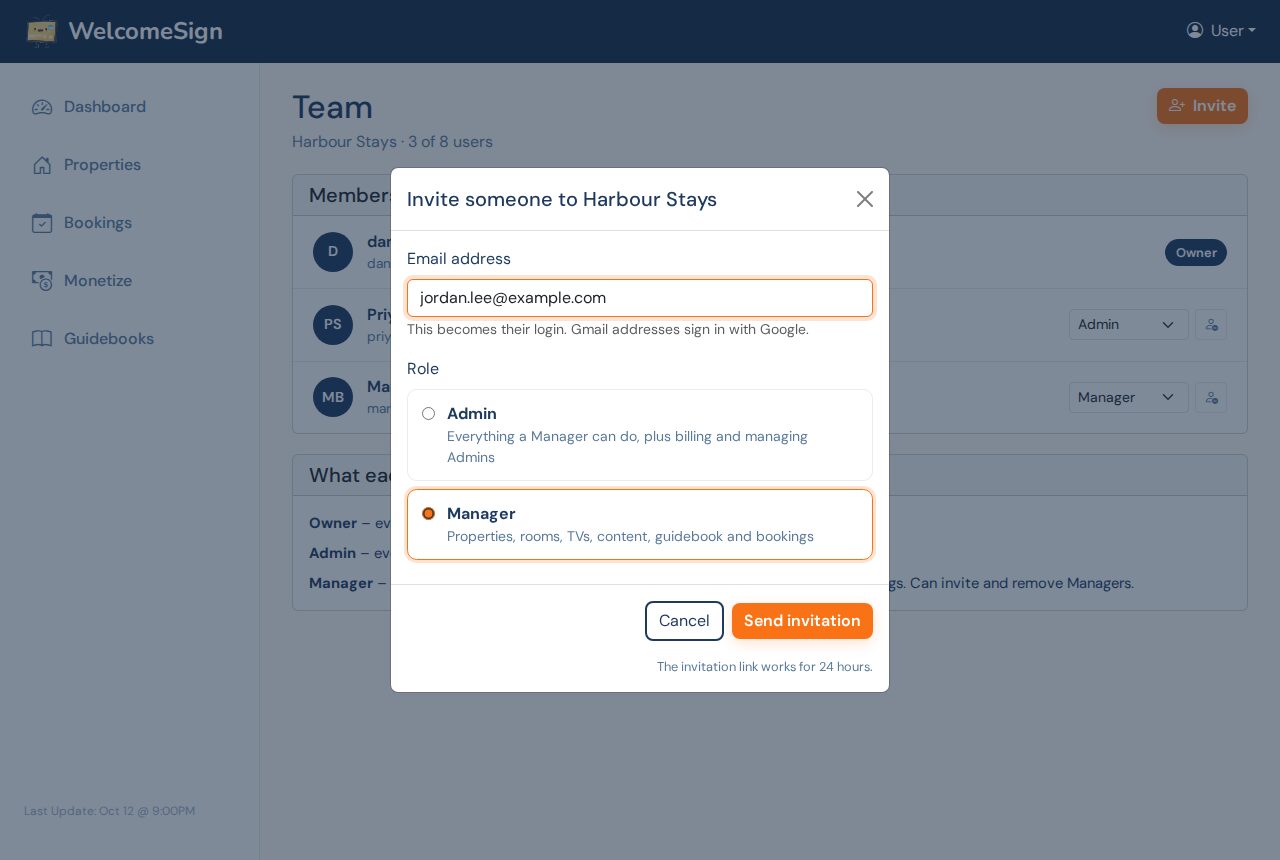
They get an email with a link. The link works for 24 hours. If it runs out before they get to it, the invitation is still listed under Pending invitations, where Resend sends a fresh one and the × cancels it.
What happens when they open the link depends on who they are:
- Someone new to WelcomeSign sets their name and a password, and lands in your account.
- Someone who already has a login signs in to accept.
- Anyone with a Gmail address signs in with Google. They don’t set a password with us.
They can also decline the invitation from the same page.
Which role to give
There are three roles, and one of them is already taken.
Owner is you, the person who created the account. There’s one per account. The Owner can do everything, and is the only one who can delete the account.
Manager is the right choice for most helpers. A Manager can work on properties, rooms, TVs, backgrounds, messages, the guidebook and bookings. That covers a cleaner who enters the next guest’s name, a co-host who updates the restaurant list, or an assistant who pairs a new TV. Managers can’t see billing or account settings, and they can invite or remove other Managers but nobody above them.
Admin can do everything a Manager can, plus billing, account settings and managing other Admins. Give this to a business partner or the person who pays the subscription.
If you’re unsure, start with Manager. You can change someone’s role at any time from the dropdown next to their name on the Team page.
How many people you can add
The count includes you.
- Free: 2 people
- Hoster: 8 people
- Business: 25 people
An invitation that hasn’t been accepted doesn’t use a seat. When the account is full, Invite is switched off and the page shows what your plan includes, with a link to upgrade. If you’re a Manager you’ll be told to ask the Owner or an Admin, since Managers can’t change the plan.
Removing someone, or leaving
The button next to a member’s role removes them from the account. Their login stops working for your account straight away. Nothing they worked on is deleted: properties, TVs and guidebook content belong to the account, not to the person.
A team member who no longer needs access can leave by themselves with the Leave button on the Team page. The Owner can’t be removed and can’t leave.
When a cleaner or co-host stops working with you, remove them the same day. It takes one click, and it’s the main reason to give people their own login in the first place.
Helping with more than one account
One login can belong to several accounts. A property manager who looks after homes for three different owners gets invited to each owner’s account with the same email address.
After signing in, anyone in more than one account sees Choose an account and picks where to work. Switch account in the menu under their name changes it later. The properties, bookings and numbers on the dashboard all follow the account they’re in. When they pair a new TV from their phone, they’re asked for the account first and then the property.
If you only belong to one account, you never see any of this.
Tips
- Use the email address the person checks every day. The invite link only lasts 24 hours.
- Don’t make everyone an Admin to save thinking about it. Billing access is the one thing most helpers never need.
- Look at the Team page a couple of times a year and remove anyone who’s moved on.
Need Help?
Email support@welcomesign.com, or use the chat button in the bottom-right corner of your dashboard.