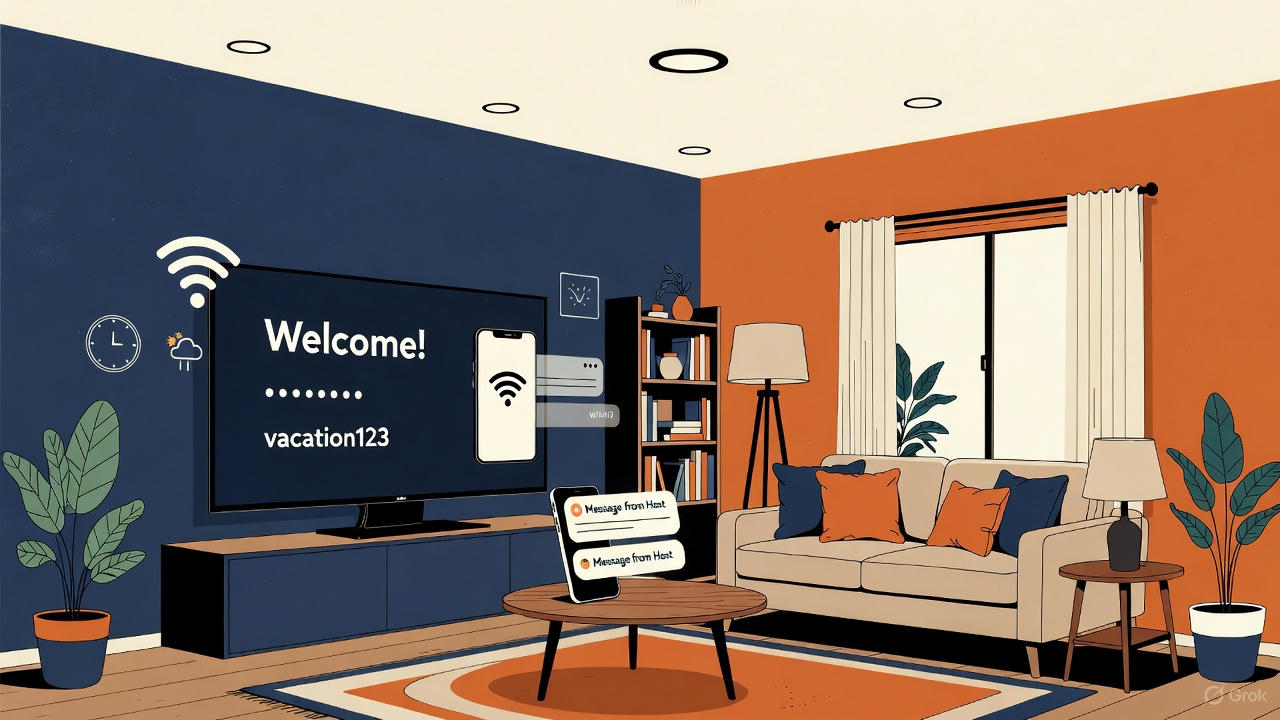
Transform your vacation rental TV into a professional digital welcome screen with WelcomeSign for Roku. This guide walks you through the complete installation process—from downloading the app to activating it with your account.
Before You Begin
Make sure you have:
- A Roku TV or Roku streaming device connected to the internet
- A WelcomeSign account (sign up free if you don’t have one)
- At least one property configured in your WelcomeSign dashboard
Installation Steps
Step 1: Access the Roku Home Screen
Power on your Roku device and press the Home button on your remote to navigate to the main menu.
Step 2: Open Streaming Channels
From the home screen sidebar, scroll down and select Streaming Channels to access the Roku Channel Store.
Step 3: Search for WelcomeSign
Select Search Channels and type “WelcomeSign” using the on-screen keyboard.
Alternatively, add the channel directly from your computer or phone by visiting: WelcomeSign on Roku Channel Store
Step 4: Add the Channel
Select the WelcomeSign app from the search results, then click Add Channel. The app will download and install automatically.
Step 5: Launch WelcomeSign
Once installation completes, select Go to Channel to open the app. You can also find it on your home screen under your installed channels.
Step 6: Note the Activation Code
When the app launches, you’ll see a 6-digit activation code displayed on the screen. Keep this screen visible—you’ll need this code in the next step.
Step 7: Pair Your Device
Quick method: Go directly to welcomesign.com/pair on your computer or phone. You’ll be prompted to log in if needed, then enter the 6-digit code displayed on your TV.
Alternative method: Log into welcomesign.com, navigate to Properties > select your property > Devices tab > Add New Device, then enter the activation code.
Step 8: Enter the Activation Code
Enter the 6-digit code displayed on your TV screen. The code expires after 10 minutes, so if it times out, simply restart the app to generate a new one.
Step 9: Confirm Activation
Once the code is verified, your TV will automatically refresh and display your welcome screen. The device will now appear in your dashboard, where you can manage its settings.
Setting Up Additional TVs
Have multiple TVs at your property? Simply repeat the process for each device:
- Install the WelcomeSign app on the additional Roku device
- Launch the app to get a new activation code
- Add the device in your dashboard using the new code
Each TV can display the same content or be configured for specific rooms (available on Pro plans and above).
Troubleshooting
App won’t install
- Ensure your Roku is connected to the internet
- Check that your Roku software is up to date (Settings > System > System update)
- Restart your Roku device and try again
Activation code expired
- Press any button on the remote to refresh the app
- Or exit and relaunch WelcomeSign to generate a new code
TV not appearing in dashboard
- Verify you’re logged into the correct WelcomeSign account
- Check that the property is properly set up in your dashboard
- Ensure the Roku has an active internet connection
Content not updating
- The app syncs automatically every 15 minutes
- Force a refresh by exiting and relaunching the app
- Check your internet connection
Need Help?
Our support team is here to assist with installation or any technical issues:
- Email: support@welcomesign.com
- Help Center: welcomesign.com/help
- Live Chat: Available in your dashboard
Ready to expand to more platforms? WelcomeSign for Apple TV, Fire TV, Google TV, Samsung, LG, and Vizio is coming soon.